Adding iCals to Outlook Calendar
Before you can integrate your booking calendar with Outlook, you first need to 'enable' iCal integration. To do this, go to Administration - Settings - Other Settings, and select Outlook/Google iCals.
When enabled you have the option of either adding a users bookings using icals, any item (room /resource), or a facility.
Find your 'iCals' URL
Users - choose 'My Profile' from within the top menu under your login name. Scroll to the end of the page to see your unique iCal URL.
Items - Go to Administration - Bookings - Item Manager and select a item. The next page will display item settings, scroll to the end of the page to find the iCal URL
Facilities - Go to Administration - Lettings - Facility Manage and select a facility. The next page will display facility settings, scroll to the end of the page to find the iCal URL

(Note : Your URL is unique. Don't use this example).
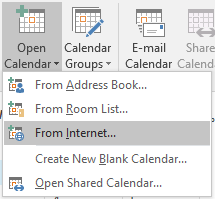
Now copy this URL, open Outlook and go to view your calendars. From the top menu choose 'Open/Add Calendar - From Internet Calendar / Subscribe from Web.
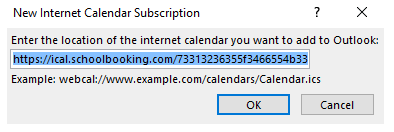
Now Paste your iCals URL and press 'OK'. This will take a few moments to sync and add the new calendar.
Working with multiple calendars in Outlook
If you need to view multiple calendars in outlook you can merge them together.
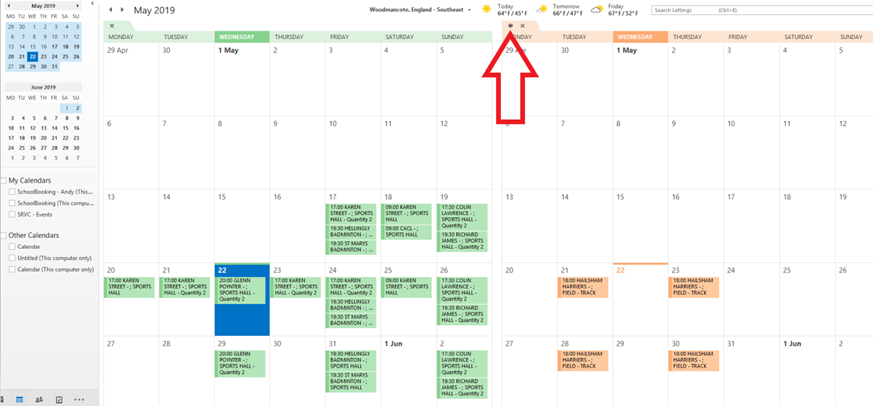
Add the other calendars you are interested in and merge together in Outlook by selecting this arrow. Newer versions of Outlook you use 'Split view'
..

..
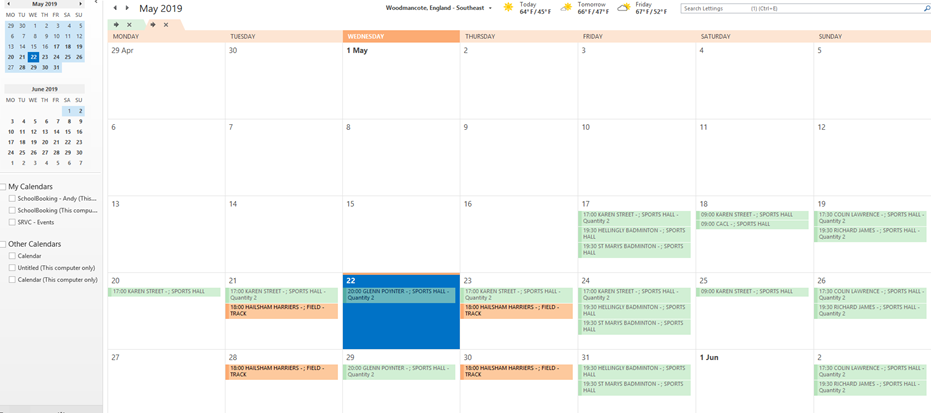
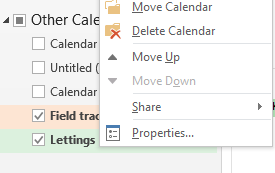
Your calendars should appear in ‘Other Calendars’ where you can rename them as required (right click a calendar to select 'properties').
If you are looking to import and merge lots of iCALs you should use a aggregator such as https://icalmerge.com or https://zapier.com