How do you create a Room / Resource?
If you go to... Administration-Bookings-Item Manager...
In the top-right corner is a 'Create Item' button. From there it will add a new room with basic settings and then take you to the full settings page where you can set anything specific for it.

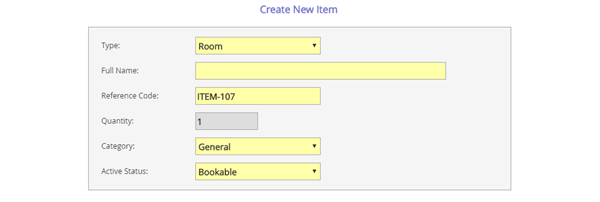
Type : Choose either Room or Resource (resources can have quantity and part booked)
Full Name : Room or resource name
Reference Code : If you are not linking with lesson data, this field is not important. You simply need to provide a 'unique' ref. Schoolbooking will suggest one for you.
Quantity : If you have choosen 'Room' as Item Type the quantity will be greyed out. If you have choosen to create a 'Resource' you can now add a quantity (ie. for 15 iPADS)
Category : 'General' is the default category. To add a new category you must first create in Bulk Tools (you see this in Item Manager)
Active Status : Choose Bookable if you want to make this item avaialable for bookings now, or choose 'Not Bookable' if you have some other settings to adjust.
When you done 'Save'.