How to Attend Video Call Appointments
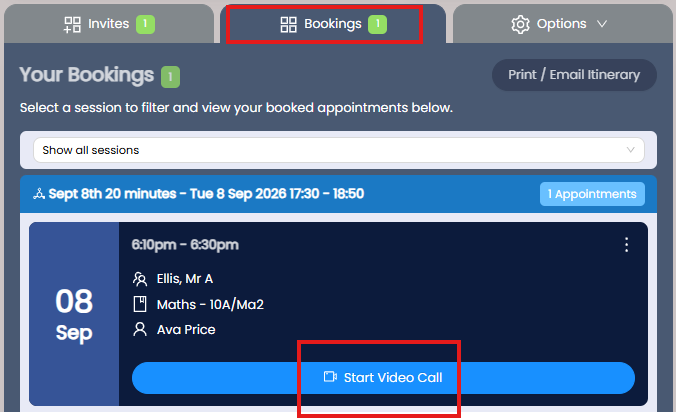
If you selected "Video Call" as your attendance option, you can book timeslots normally. When you book with a teacher, a "Start Video Call" link will appear in your Schedule. Use these links on the day of the Parent Meeting event.
Before You Start
Ensure you're using a compatible browser and have a device with a front-facing camera and microphone.
On the Day of the Event
Login to https://parents.events.schoolbooking.com/ or click the link in the booking itinerary email from your school.
Test Your Device Before Meetings Start
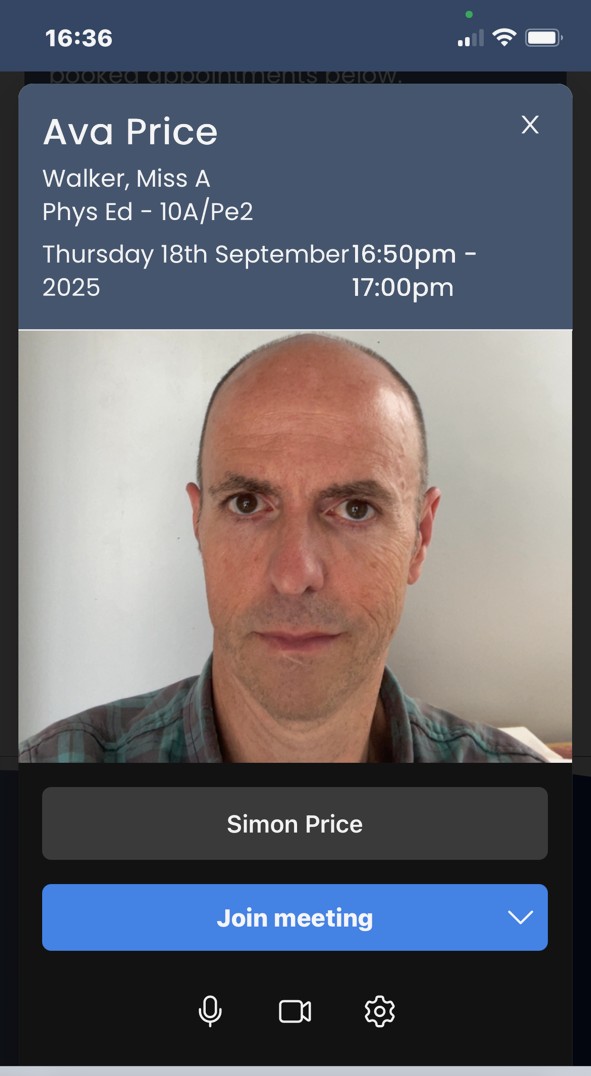
Test your camera and audio before the event starts by selecting any Start Video Call link. This opens a new tab and may request permission to use your microphone and camera. Select "Allow" — video calls won't work correctly otherwise. To change these settings, see the troubleshooting section. You should see your name and a Join Meeting option. Select Join Meeting to test your camera — you should see yourself and a "Waiting for teacher…" message.
During Your Meetings
Start Video Calls early so you're ready when the teacher connects. At your appointment time, the teacher will connect and start the meeting (note: the teacher may be running late from a previous meeting).
Video call controls:
- Click the microphone button to enable or disable your microphone
- Click the phone button to end the call
- Click the camera button to turn your video on or off

When your call finishes, select the phone button to leave. You'll see a feedback request page — submit feedback or close the tab to return to your appointments list. Check your next appointment time and Start Video Call when ready.