How to Manually Set Timetable Weeks Rotation
Article for Xporter MIS connected sites only
Overview
Timetable weeks are set manually and do not affect MIS timetable data or bookings. The setting acts as a visual cue to staff on the Booking Planner.
Steps
- Go to Administration → MIS Integration → Settings → Configuration Tools
- Select 'Manually set your Timetable weeks rotation'
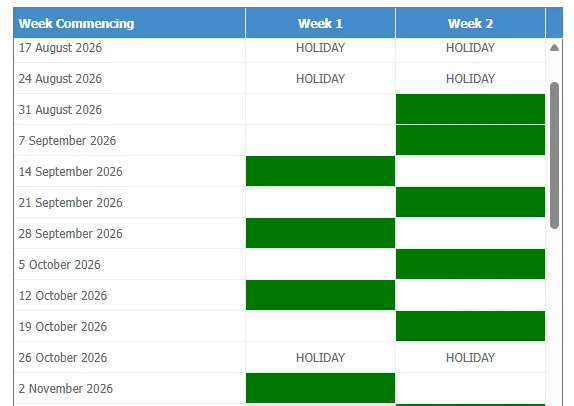
- Update the columns for Week 1 and Week 2
- Save your changes
Staff will now see the timetable week displayed.
