Install Parent Meetings Web App
Install our Web App on compatible devices and browsers for a faster experience.
Web App Compatibility
- Apple Mac - Safari
- iPhone / iPad - Safari
- Windows PC - Chrome or MS Edge
- Android Device - Chrome
How to Install Web App
Safari
Open Safari and navigate to https://parents.events.schoolbooking.com/
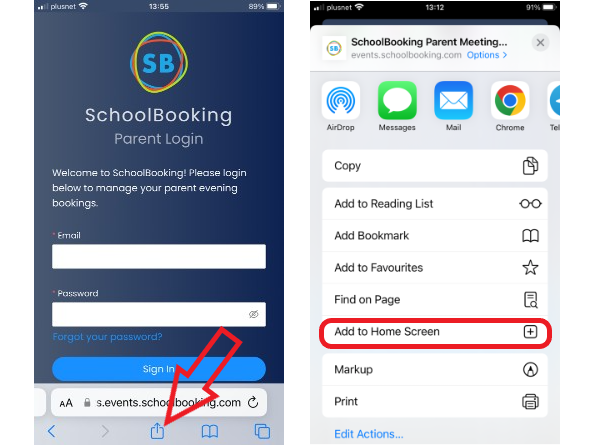
On the navigation toolbar at the bottom of the screen, tap the Share icon (the rectangle with an upward arrow).
A Share menu will appear at the bottom of the screen. Pull it up and swipe through the list. Tap "Add to Home Screen."
A menu titled "Add to Home Screen" will appear. Name your new Home screen web icon using the onscreen keyboard. Tap "Add" in the top-right corner.
The SchoolBooking icon will appear on your Home screen. Tap the shortcut to use it like a regular app.
Chrome (Computer)
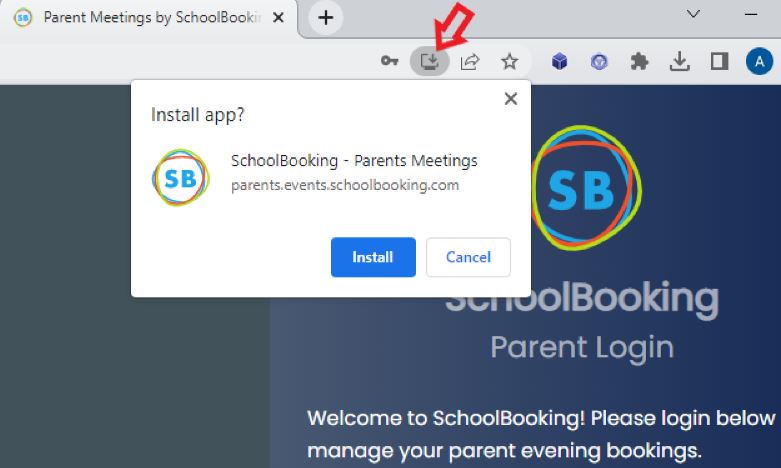
Open Chrome and go to https://parents.events.schoolbooking.com/.
At the top right of the address bar, click the install icon to Install.
Edge (Computer)
Open Edge and go to https://parents.events.schoolbooking.com/.
At the top right of the address bar, click the install icon to Install.
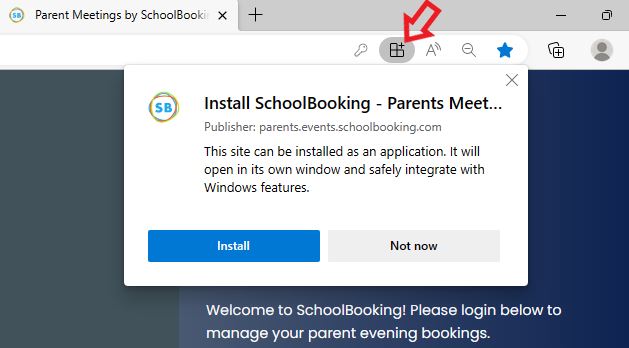
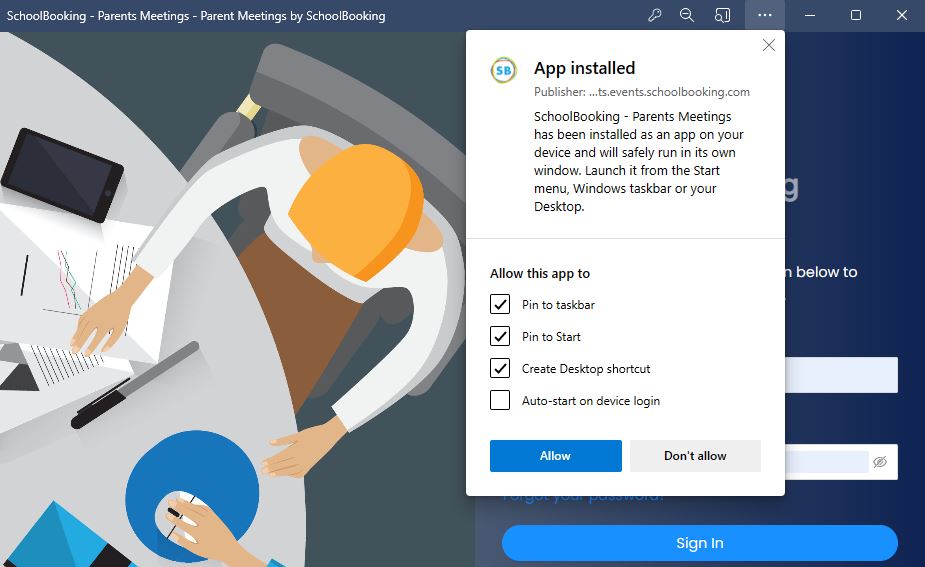
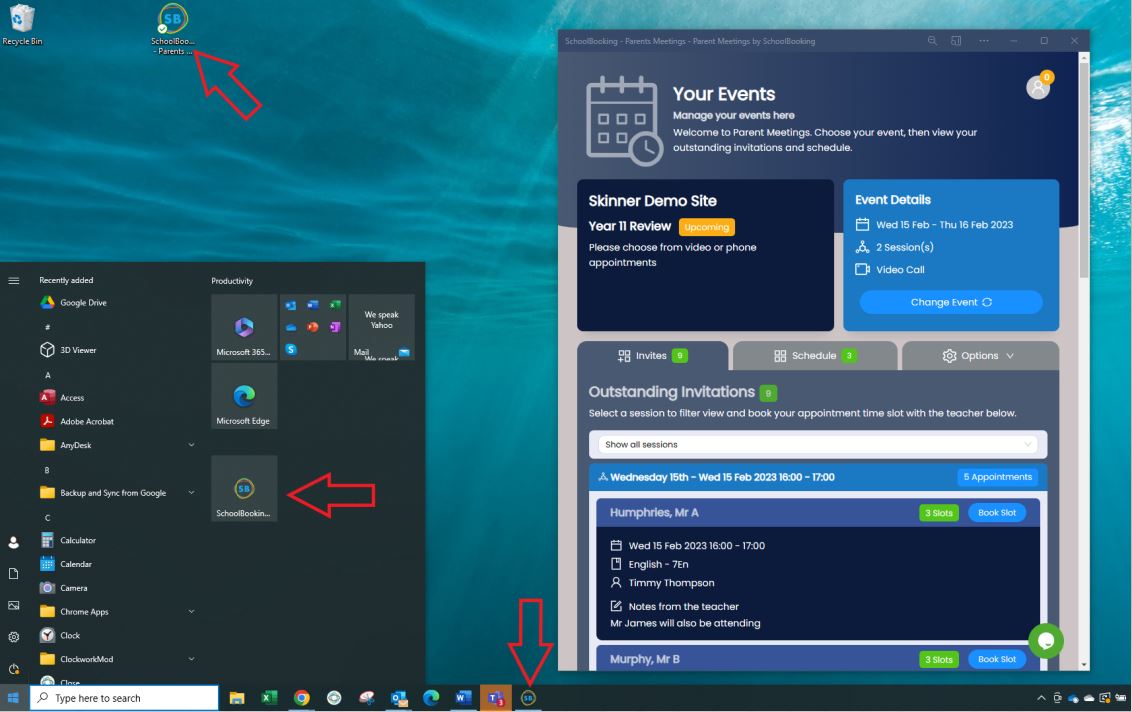
The Parent Portal will open as an App. When you see the App installed message, allow the app to Pin to Taskbar, Start, and Create a Shortcut to quickly find it next time.