MIS integration – getting started
To get the most from SchoolBooking we suggest you setup the MIS Integration. SchoolBooking is then updated with your lesson changes, school groups and parent contact information.
Integration is provided by our partner Groupcall Xporter, and is provided for no extra charge.
There are 3 key steps to getting integration with Xporter working
Step 1 - Register
Check with your IT team to see if you are already using Xporter. If your already using Xporter make sure it is connected to you current MIS and proceed to Step 2
If you are not using Xporter, register your school on the Xporter platform for your MIS. If you are unsure the information needed please contact our customer services team and they can invite your school into the platform.
Step 2 - Add DFE
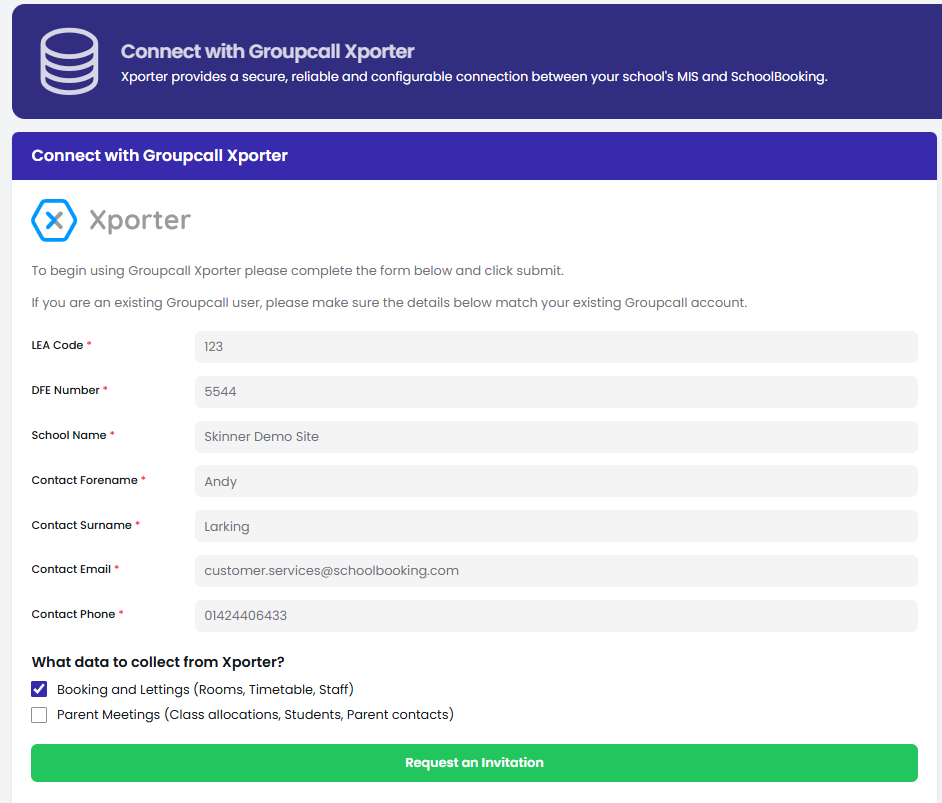
In SchoolBooking go to Administration - Academic - MIS Integration. Now complete your school details (DFE number) and confirm the data required. If you are planning to use our Parent Meeting service make sure this data option is selected.
International Schools - If your school is outside the UK please contact our customer services team to request a synthetic DFE code (customer.services@schoolbooking.com).
Click Connect to get started
Follow the on-screen instructions to authorise data sharing agreements
Step 3 - Configure your MIS
Once you have received confirmation from Xporter you have successfully install the XporterOnDemand client and provided authorisation you will need to wait 1-2 hours for the initial sync to complete. If you do not see the MIS Integration page update in SchoolBooking please contact our customer services team. They can check data flow and advise.
Additional support guides
How to install Xporter for SIMS