No Rooms or Resources Bookable
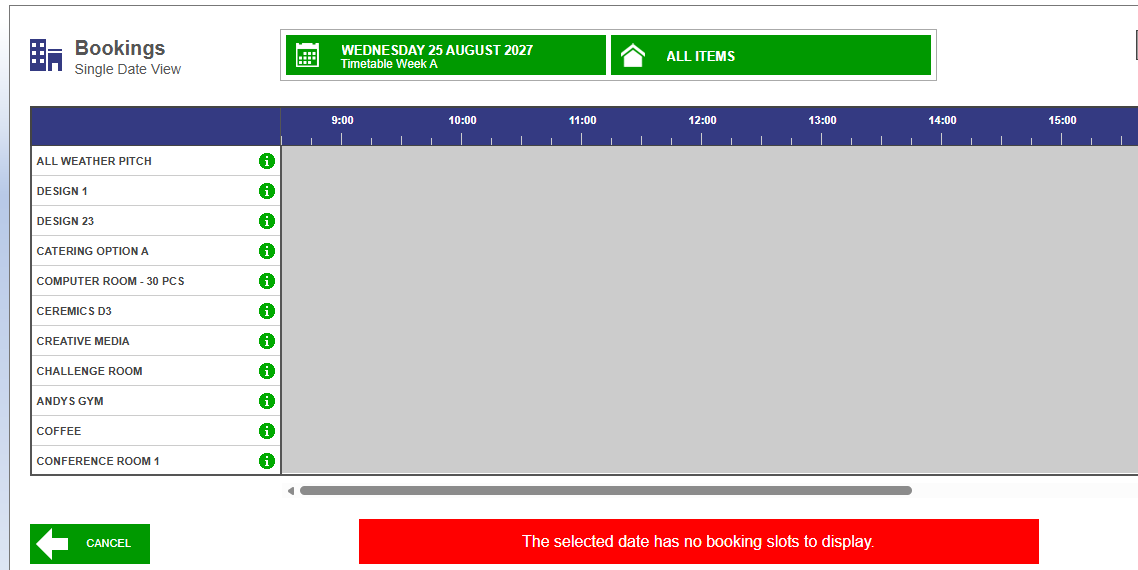
If you see the message 'The selected date has no slots to display' with no timeslot headers or available slots in the booking planner, this is likely due to expired bookable dates. Bookable dates need extending periodically—most schools do this early in the term so staff can book for the next academic year.
Resolution
- Go to Administration > Bookings > Bookable Times/Dates
- Select your timeplan group (most schools use Timeplan Group 1)
- Select Bookable Dates—any dates colored white are not bookable
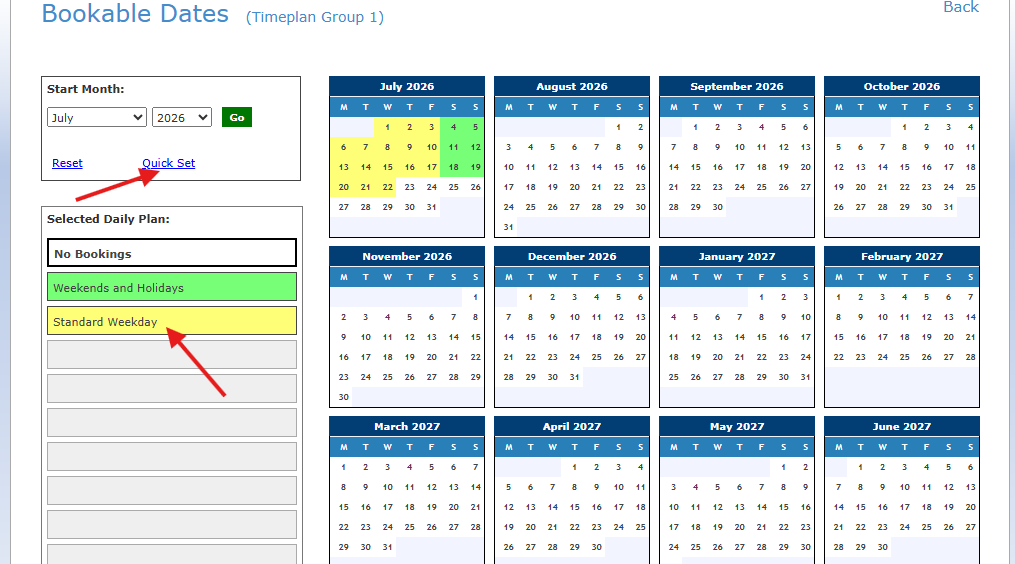
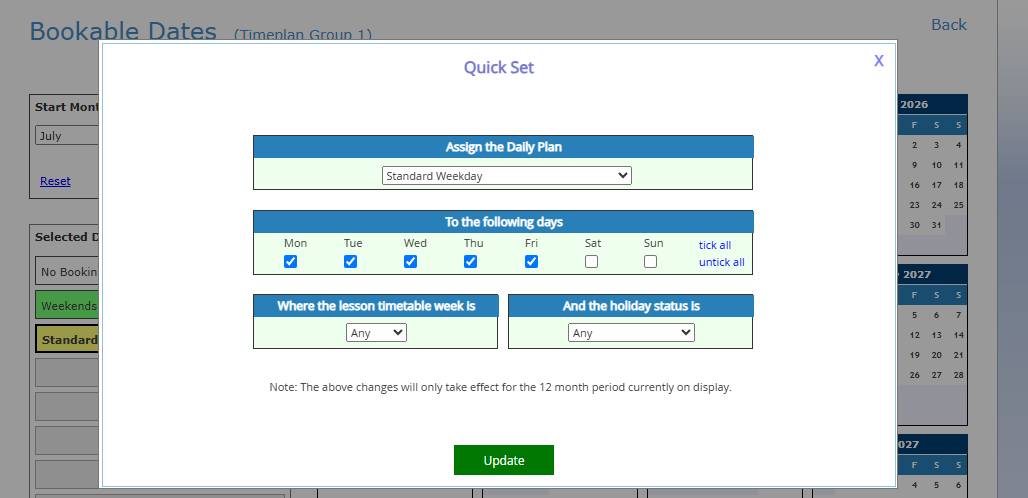
- Choose your Daily Plan and use Quick Set to update dates
- For holidays, change back to not bookable by selecting 'No Booking' Daily Plan and clicking the relevant date
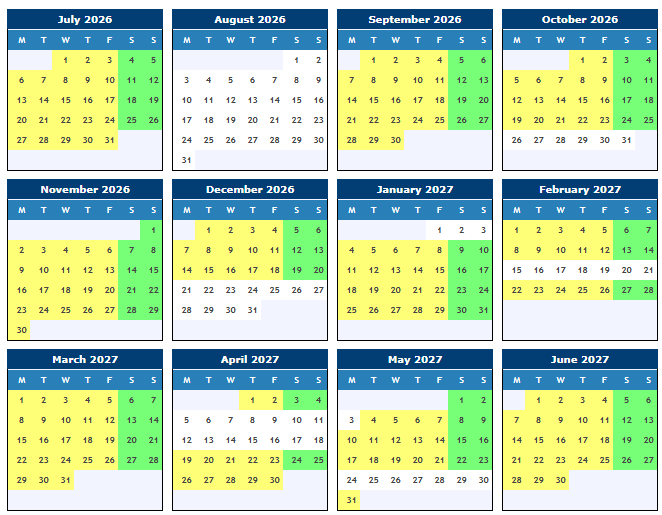
Remember to save your changes.