Add Data for Parent Meetings via Xporter
To add data for creating Parent Meetings, update your data sharing permissions in Xporter.
Setup Steps
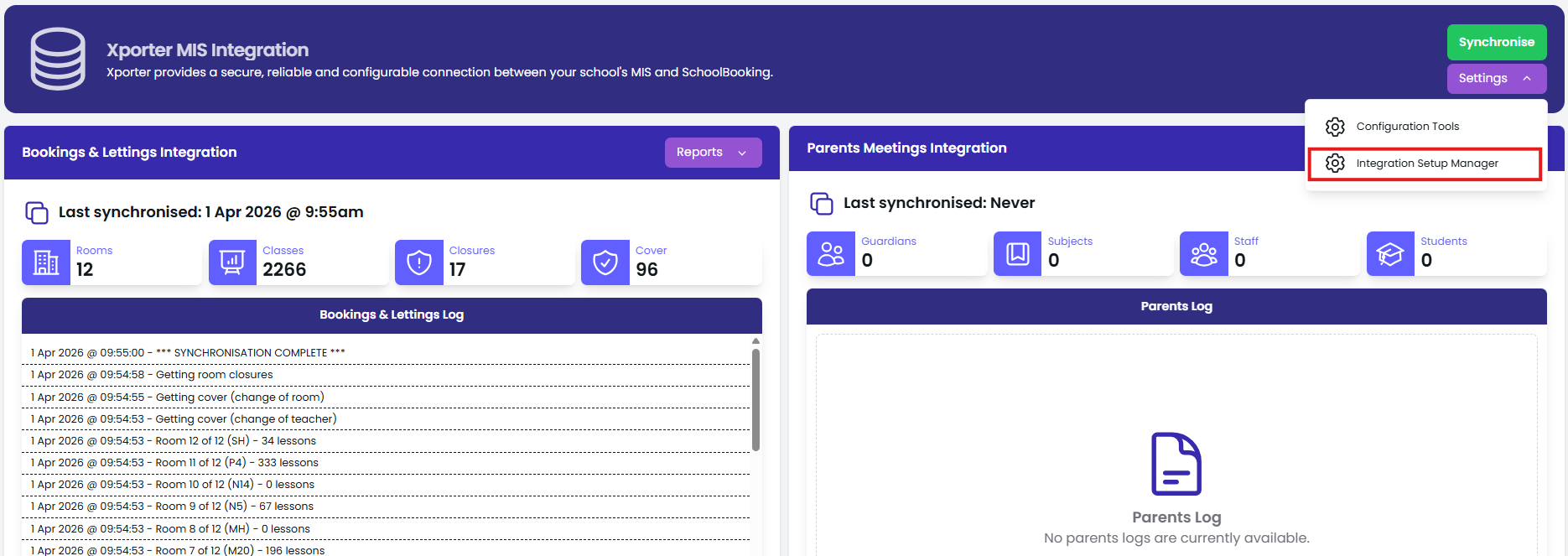
- In SchoolBooking, go to Administration - MIS Integration
- Select Settings - Integration Setup Manager
Note: If setting up MIS integration for the first time, follow this guide
- Verify details are correct (LEA/DFE, contact name and email)
- Check the boxes for both Bookings & Parent Meetings
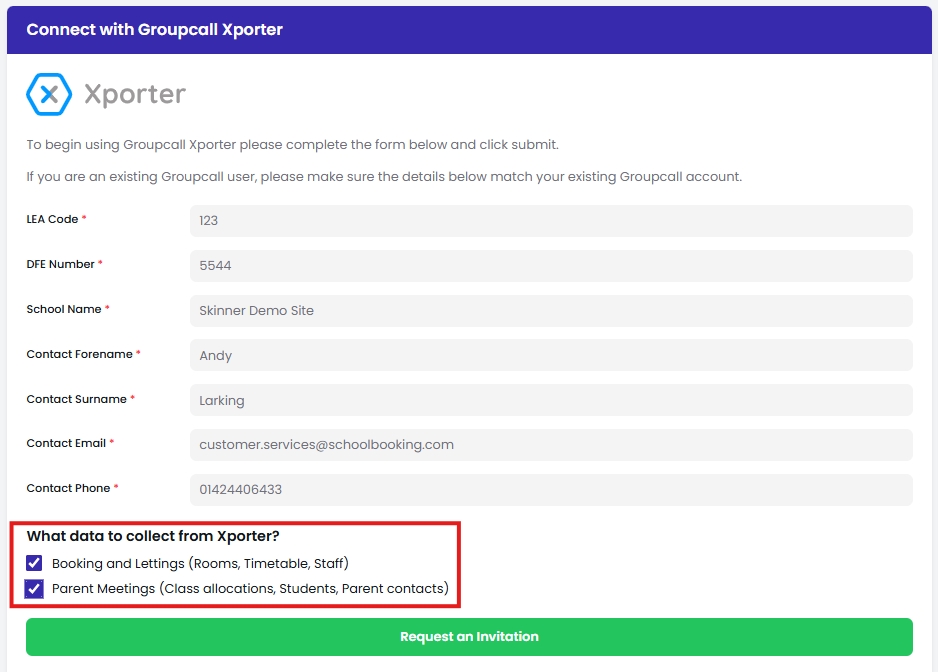
- Select Request an Invitation
- Authorize the SchoolBooking app via the Xporter email
Next Steps
The next MIS sync will include Parent Meeting data. For immediate access, contact customer services to force a new sync and verify data flow.
This process applies whether you're new to SchoolBooking or already using it for Bookings.