Camera and Microphone issues
Most camera and microphone issues are related to access. The camera and microphone can only be connected to one application, so if you are using something like MS Teams, Whatsapp, Messenger or Skype it will help if you close these applications before starting to make video calls.
The web browser will ask for access when it first connects to a Video call. If this setting is incorrect the microphone and camera maybe blocked. Please see these guides that should help you unblock your device
Chrome
Firefox
How to manage your camera and microphone permissions with Firefox
Safari on Mac
Safari Change Websites preferences in Safari on Mac
iPad / iPhone users
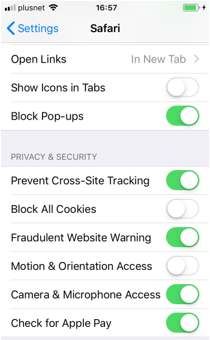
Go to Settings and search for the Safari application. Check Camera & Microphone Access is enabled
Check Settings when you have multiple audio and video devices connected
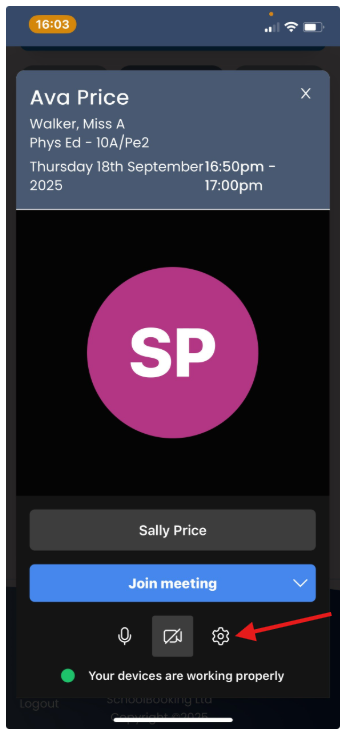
Another reason for audio and video issues is when you have multiple devices connected (For example, laptop with integrated microphone, front & rear facing cameras, with an extra USB camera connected). Check your video call is using the correct device, but selecting the Settings Cog (mobile) or the 3 more dots found on the bottom right of your screen.
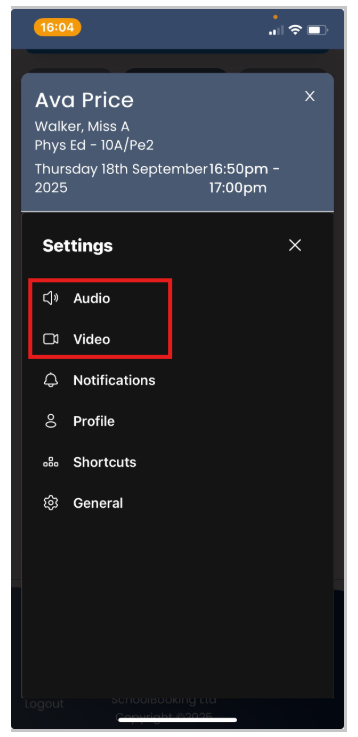
The Settings panel will show your available devices (with camera preview, and audio test). Select device you want to use and click Ok