Create and managing Notifications
For Event Managers & Administrators
Select Manage Event - Communications to access to your parent communications log (email invitations) and the feature to create additional event notifications. There are 3 options available...
- Booking confirmation emails - these emails contain the parent meeting itineraries and are normally sent the day before the event starts.
- Application - Have a instant notification message pop up when in the parents login
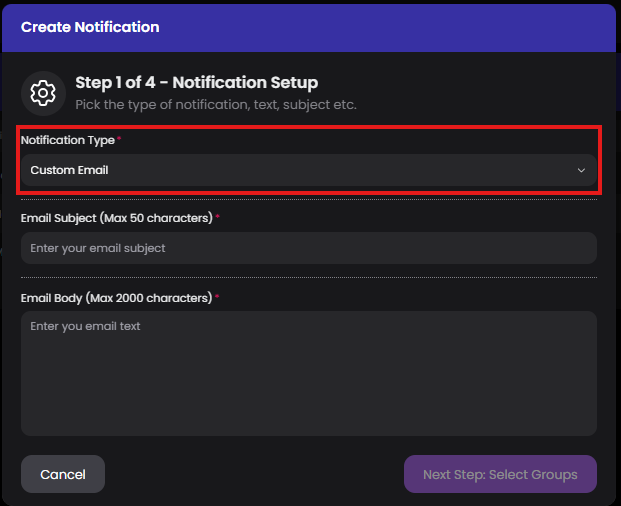
- Custom email - Create a email to send to guardians and specify a particular teacher group.
Examples of application and custom email notifications
- When a new lesson/teacher is added to the event or when a teacher is removed late due to illness.
- Reminder emails to guardians to book meetings before the new bookings are disabled.
- When there is a technology fail for a teacher, you can send an app notification to parents effected.
- Advise guardians of venue changes (ie. extra parking, room or access changes, catering etc)
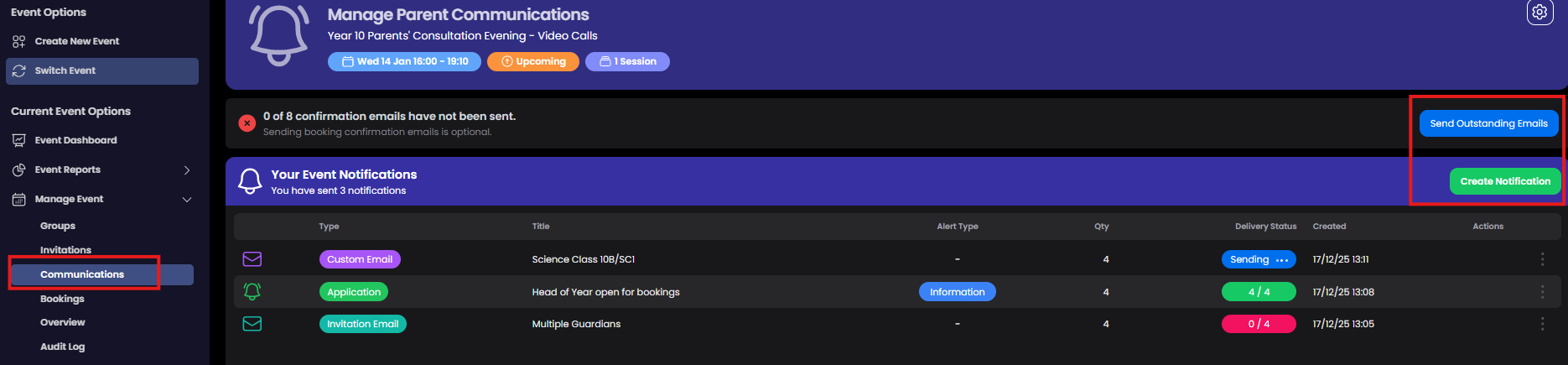
Create your notification.
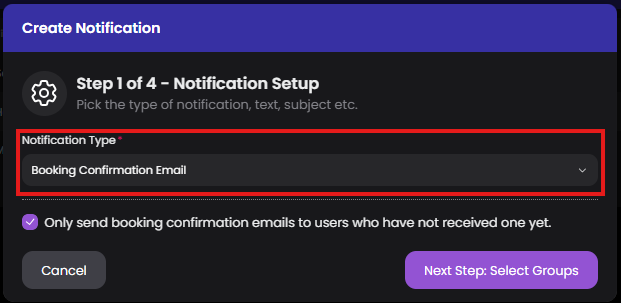
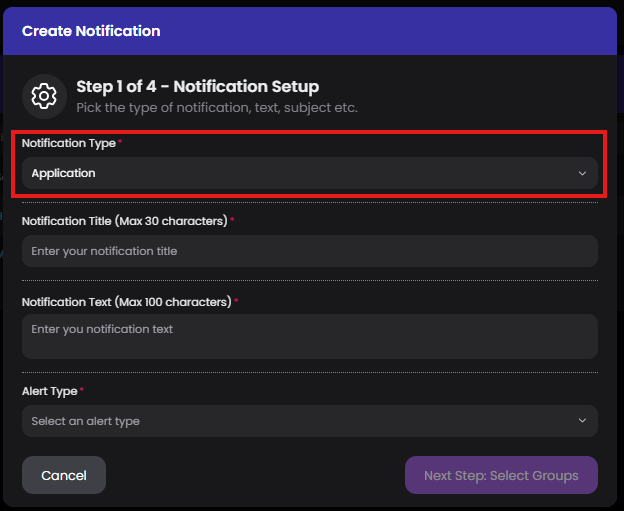
Step 1 - Notification Type
Select Create Notification to get started. You then can choose the notification type. (Booking confirmation, Application, or Custom Email). For Application and custom email complete the additional details of the notification as required.
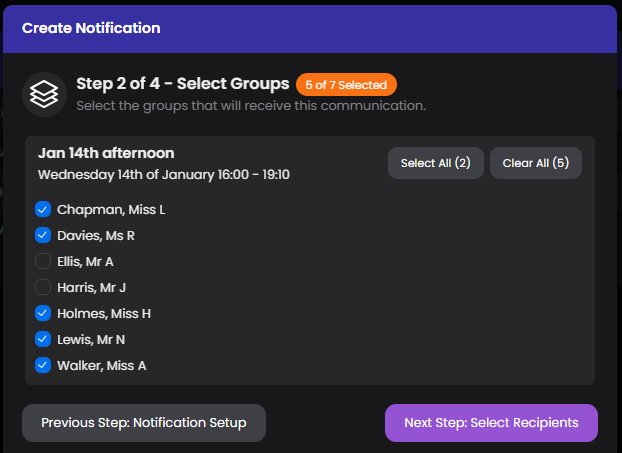
Step 2 - Select Groups
You can now filter the notification to be only sent to the guardians of specific teacher groups.
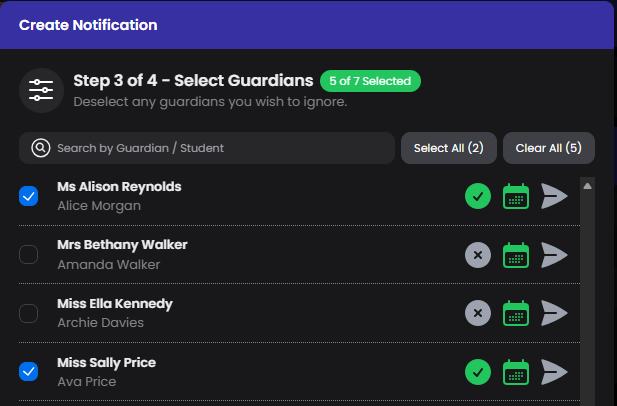
Step 3 - Select Guardians and Send
If needed you can now filter further to only send the notification to specific guardians. Proceed to final step to review the summary of the notification and select Send
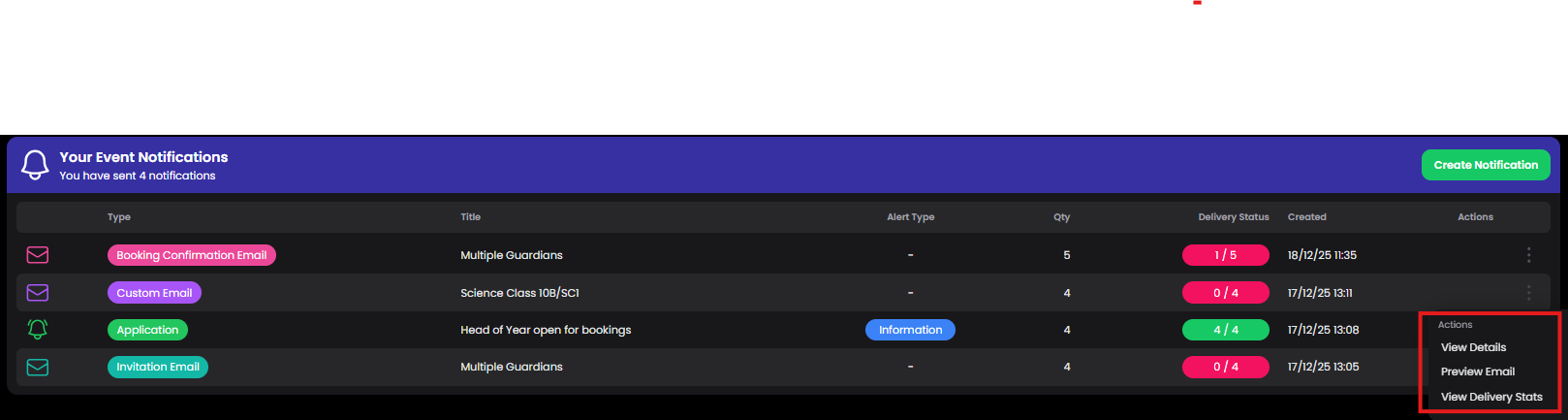
View Notification details and delivery stats
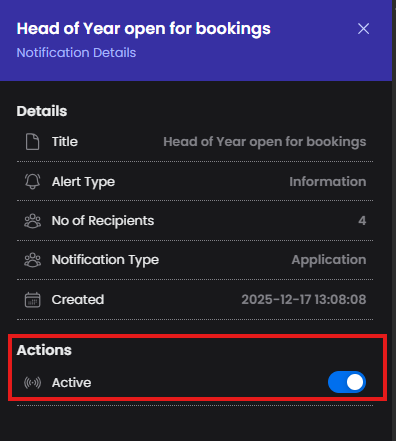
View the details of your notifications for this event, and delivery stats by selecting Actions. For Application notifications you can disable if no longer relevant.