Hirer on-line payments - Stripe Setup
We provide integration with Stripe.com. Stripe is one of the most widely accepted and reliable payment processors in e-commerce and will provide the best payment experience for your hirers.
It is quick and free to sign-up to Stripe with no setup fees, monthly fee, or hidden charges.
1.5% + 20p*
for European cards
2.5% + 20p*
For non-European cards
*always check stripe for current fee'

Step 1 – Stripe setup
To get started you will first need to create a Stripe account for your school at https://dashboard.stripe.com/register. After you have created your account follow the Stripe getting started prompts to -
- complete your account settings
- validate your email
- activate your account and setup two-step authentication
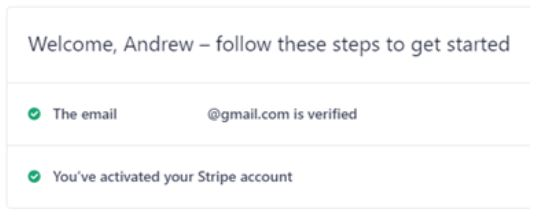
You can ignore the getting started sections regarding ‘Test and Live API keys’, you will not need them for the SchoolBooking payments setup.
Email Settings in Stripe
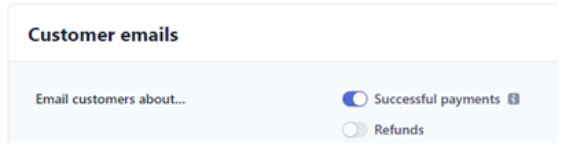
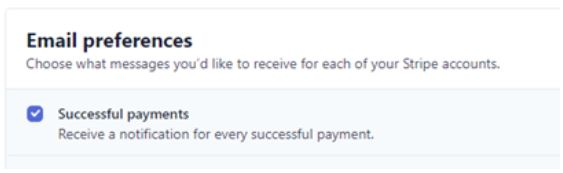
If you want the receive payment confirmation emails there are two settings to update
Customer Emails (the email the hirer will receive) – From your Stripe dashboard go to Settings > Emails (https://dashboard.stripe.com/settings/emails), update Email customers about.. ‘Successful payments’ and Save
Email preferences (the email you will receive) – From your Stripe dashboard go to Settings > User (https://dashboard.stripe.com/settings/user). Scroll down to Email preferences and tick ‘Successful payments’ and Save
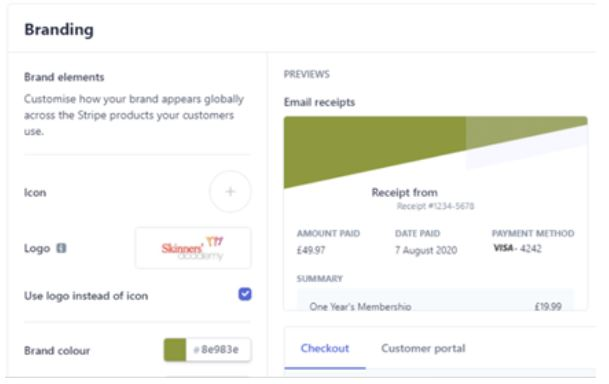
Branding for Checkout and Email Receipts
Add your School logo and other branding elements to the Stripe checkout and email receipts. From your Dashboard go to Settings > Branding (https://dashboard.stripe.com/settings/branding )
Step 2 – Connect your Stripe account to SchoolBooking
Once your Stripe account is active and you have completed the verification you can connect SchoolBooking. Go to Administration – Lettings – Payment Processor and select ‘Connect with Stripe’

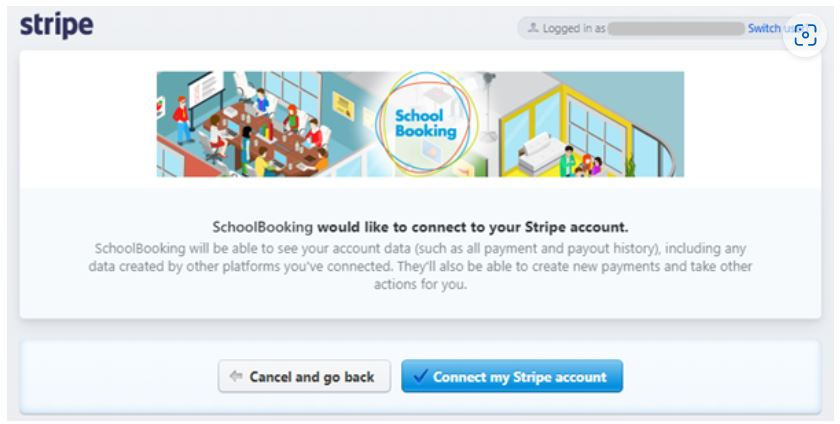
You will now be asked to authorise SchoolBooking to connect (if you are not logged into Stripe you will be prompted to do so)
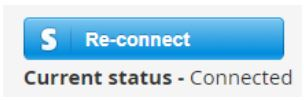
After connecting your will be re-directed back to the Payment Processor page and see a confirmation message and current status
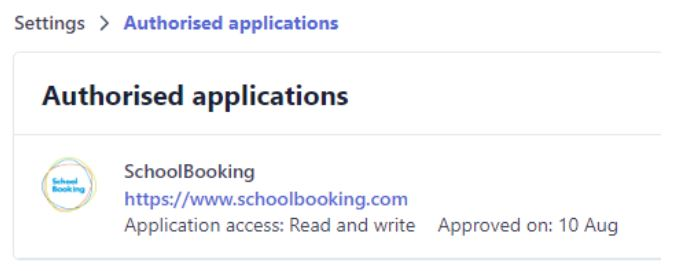
If you want to check your authorised apps go to your Stripe Business Settings.
Step 3 – Check your Hirer login setup and allow hirers to make online payments
Hirer login is provided in separate website to the main SchoolBooking application. Please see this article regarding setup.