Parent Meeting Dashboard & Event Checklist
For Event Managers & Administrators
Your event dashboard is usually the first page an event manager will see when they access Parent Meetings. By default the system will show your next upcoming event summary. The dashboard provides your event status, access to all settings, manage event modules, and useful insights so you can quickly see how you event is progressing.
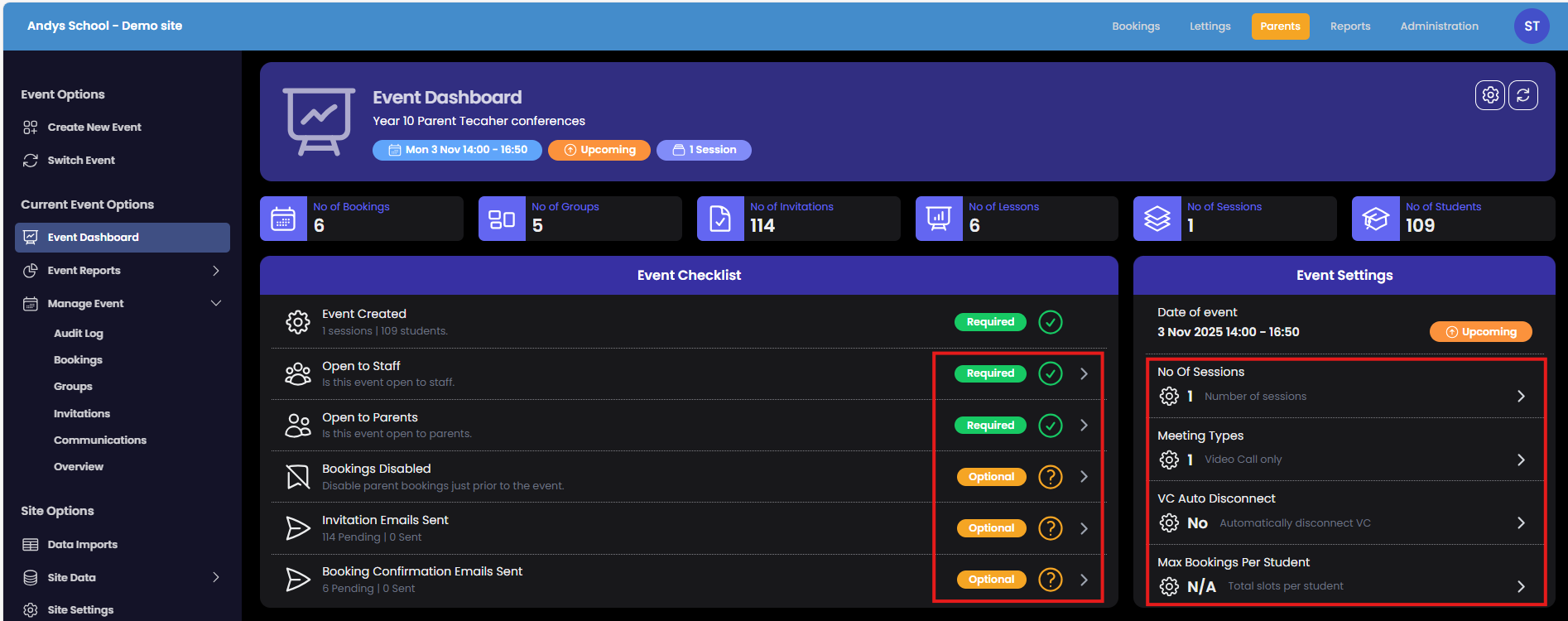
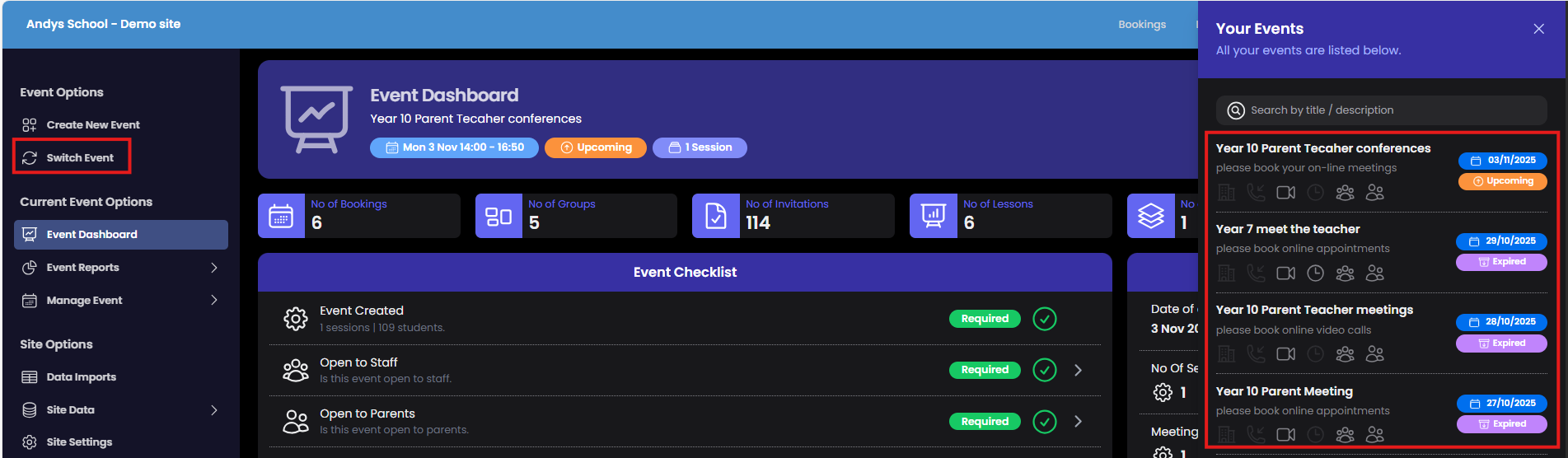
Switch Event
Check the event details, date and times. If you are not viewing the correct event, change it using Switch Event
Event Checklist
Your checklist will indicate which steps in your event are still to complete. Click on any of the sections to update.
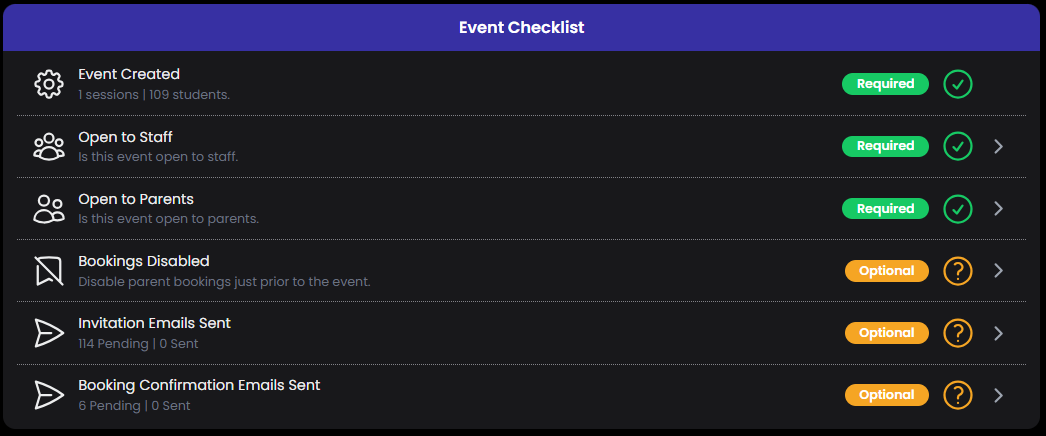
Event Created - This indicates that you have completed the creation process and added some lessons/groups
Open to Staff - When you are ready you can allow teaching staff access to the event. When teachers login they can view their schedule, make bookings and adjust availability (note : teacher booking and availability can be restricted in site settings)
Open to Parents This is an important step so the parents can access the event and book appointments with teachers. This step is normally completed just before you send the Invitation emails
Bookings Disabled Use this just before your event starts (i.e.. the day before) to prevent last minute appointments and allow teachers to prepare for their schedule.
Invitation Emails Sent This will indicate how many emails have been sent to parents and if any are pending. The invitation email contains information about your event and account activation/login URLs so is a critical part of the event checklist.
Booking Confirmation Emails Sent Remind your parents that your event to going to be starting soon by sending booking confirmation emails. The email contains the parents itinerary of appointments and login link. Use the Notifications module to send parents other event messaging/announcements (In Manage Event).
Other Dashboard Stats
Your dashboard contains useful insights so you can see how your event is progressing. Each section will link you to the relevant report/manage module so you can investigate further.
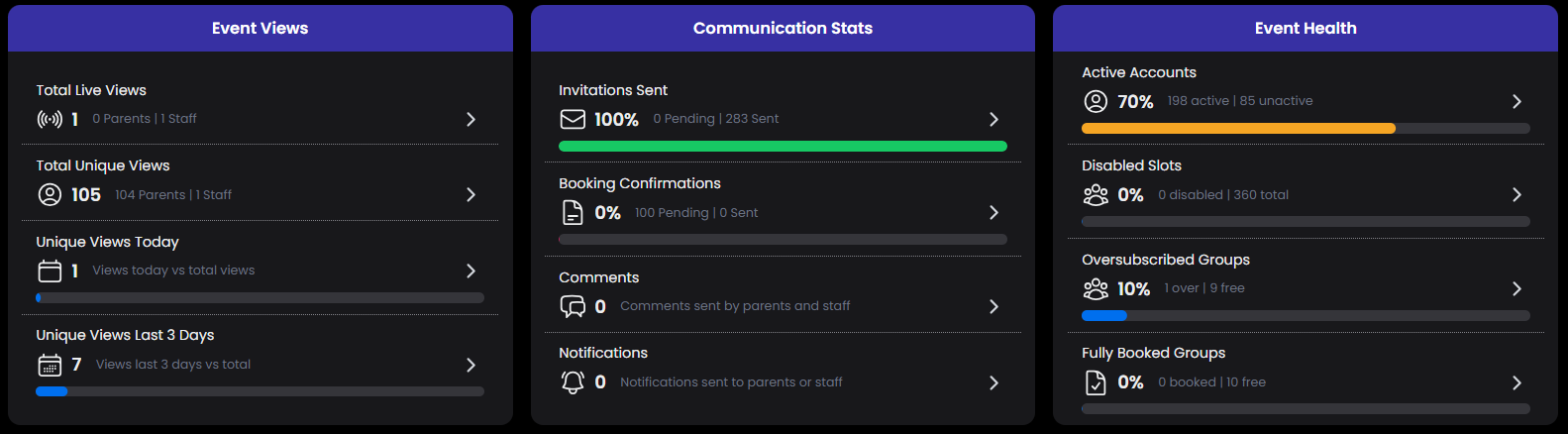
Event Views After you open your event and send email invites, you can use event views to see which parents and staff are online. Select a view to see more details
Communication Sats A quick overview of what event communications you have completed (invitations, confirmations, and notifications) and any appointment comments from parents
Event Health Essential insights for your event.
Active accounts - indicates you how many invited parents have logged in to view the event.
Disabled slots - how many slots are marked as unavailable. Ideally you will want this to be as low as possible so all parents can book appointments
Oversubscribed groups - if you add too many lessons to a single teacher and they don't have enough available slots for every invited parent to book appointment. The overscribed groups will normally get fully booked quickly and parents will be disappointed they can meet with the teacher.
Fully Booked Groups - If a larger number of your groups(teachers) are fully booked, this will indicate that your event isn't big enough (needs more slots). In future events you may want to consider add an extra session for your most popular teachers, extending the session or perhaps reducing the meeting times (ie. from 8 to 5 minute appointments) to create more capacity.