Teachers guide - extra features
Disable slots to manage availability
Note : this feature can be disabled by the event administrator
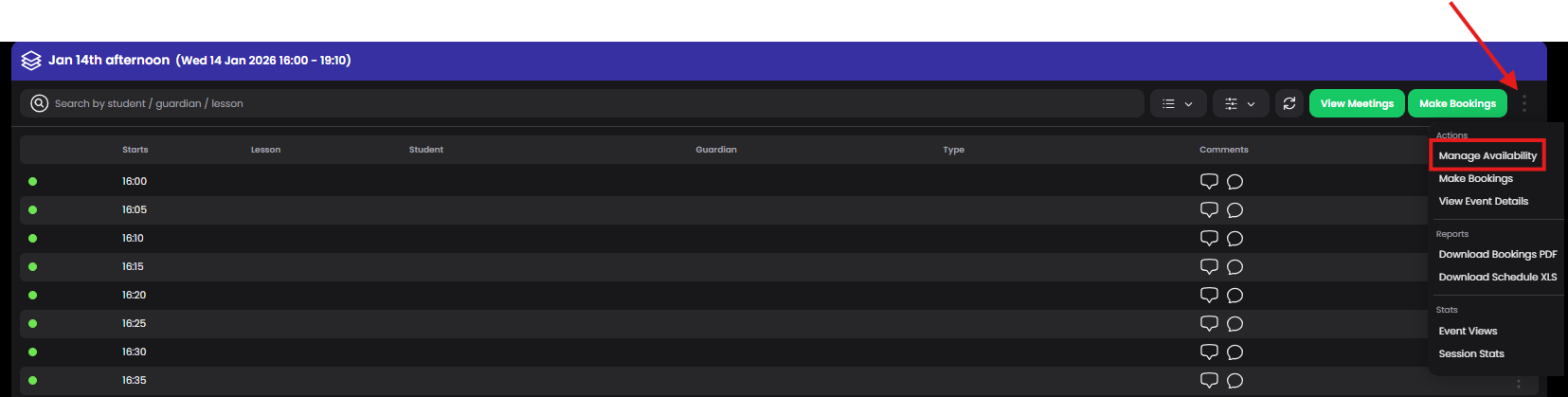
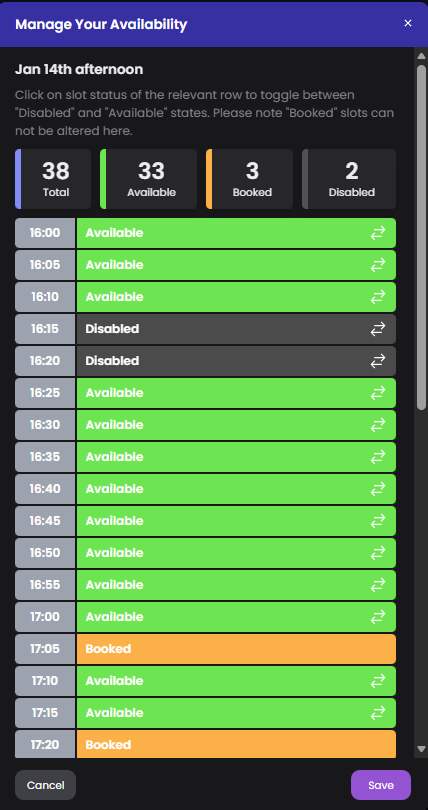
To adjust your availability choose Actions, and Manage Availability . Then click on the timeslots to disable and Save.
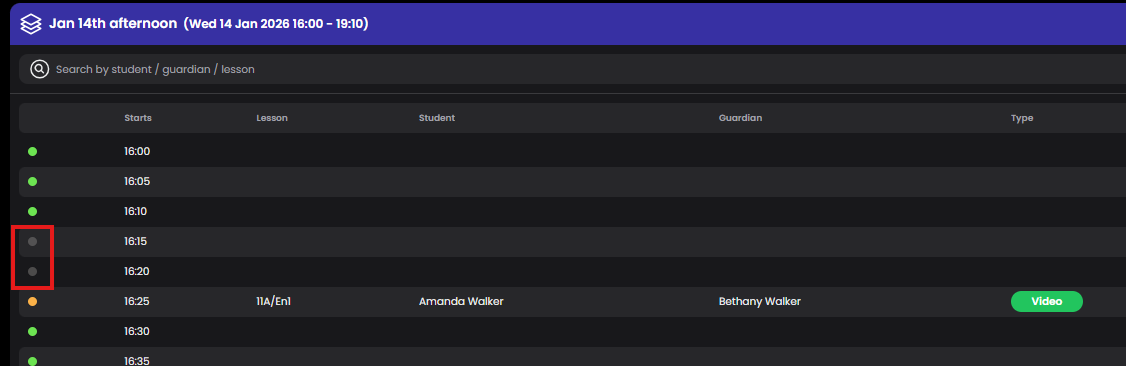
Disabled timeslots are indicated on your schedule
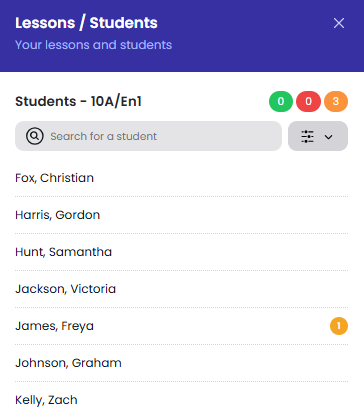
View your Lessons and Students
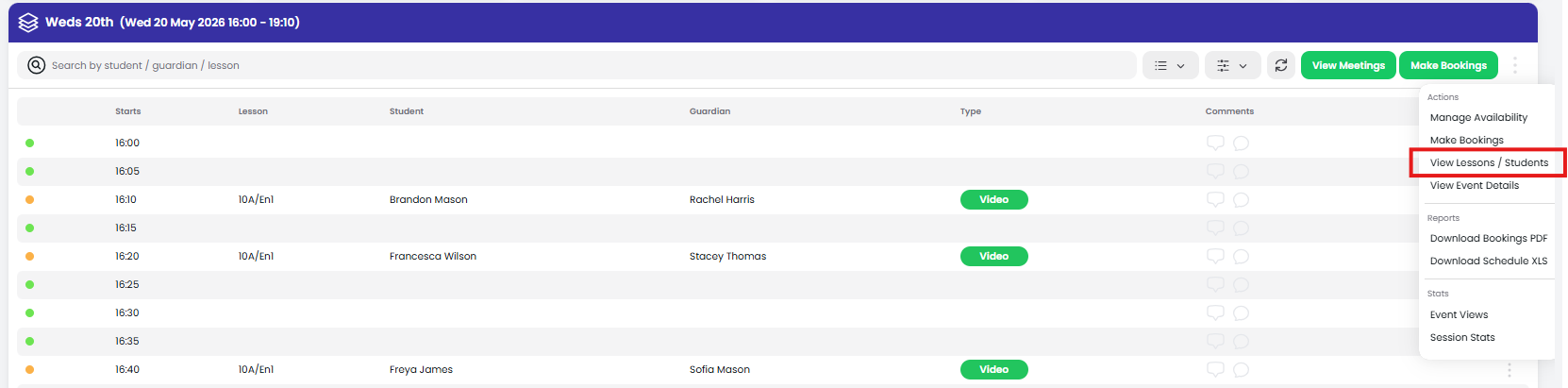
The event organiser will have selected your lessons. To view your lessons and students, choose Actions and View Lessons / Students. Click on the lesson to view the associated students. If you think something is incorrect with your assigned lessons (wrong/missing lessons or students), contact the event organiser/admin.
Download bookings schedule
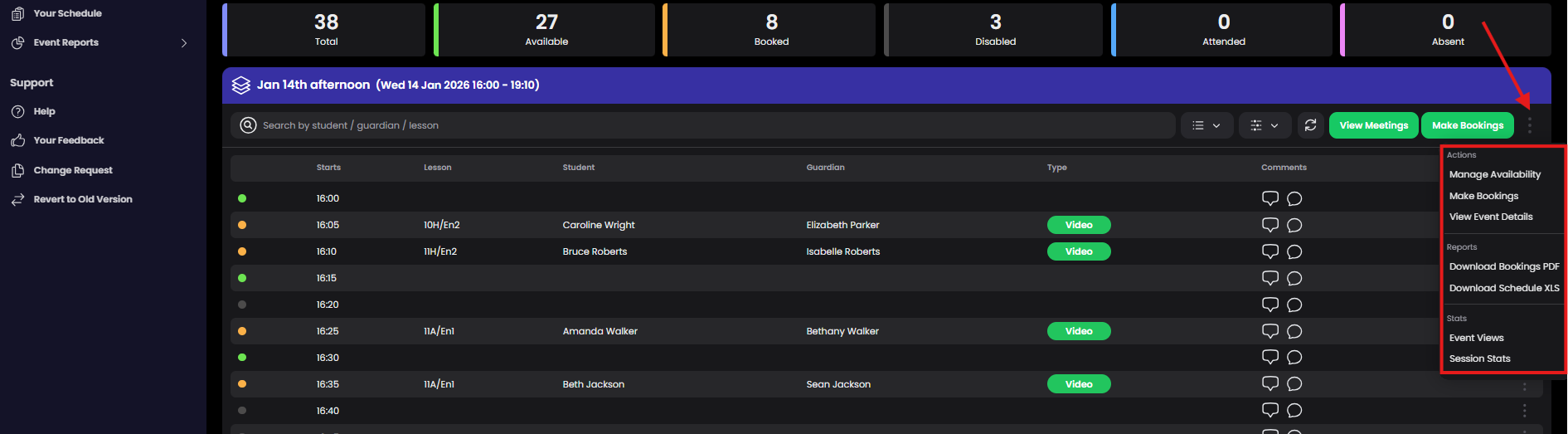
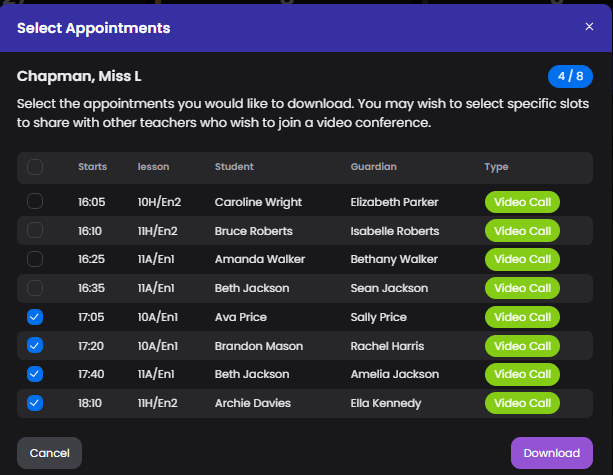
Download all or part of your schedule in PDF of Excel format. Useful for adhoc situations if you have an extra staff member that wants to join your video call meetings who perhaps isn't a teacher, or if you decide to split parent bookings between teachers (note : the admin can also duplicate and split classes during event creation). Find the Actions tools and download options and then select the appointments to download.
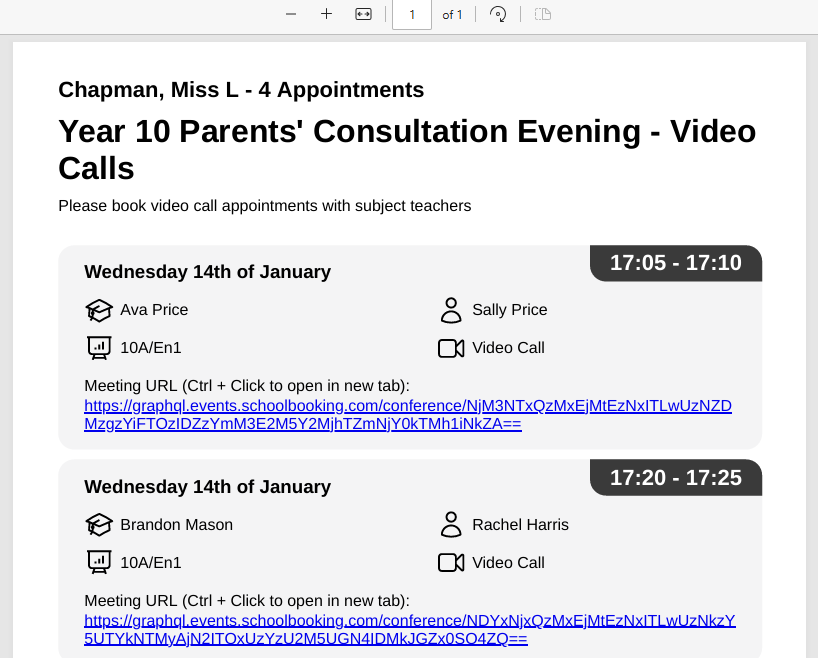
The downloaded file will contain meeting details (and video call links if your event has video calls meetings enabled). PDF example below.
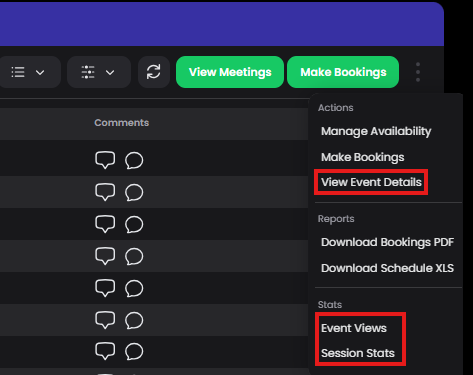
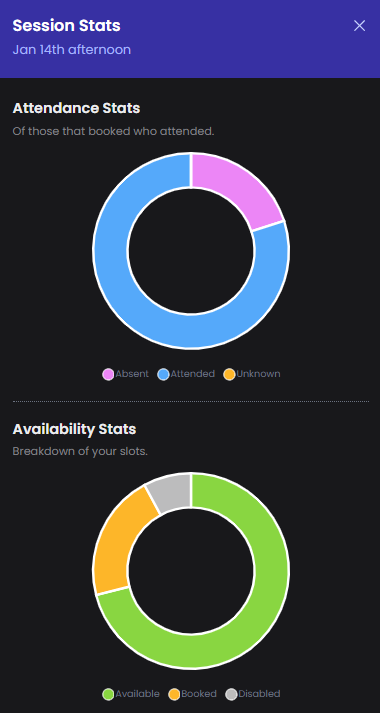
View event detail, and statistics
Find the Actions tools to access the event details, recent views and some stats.
Add your notes
Before the event starts you may want to prepare some short notes of talking points with guardians. To to this select the Actions from the booking.
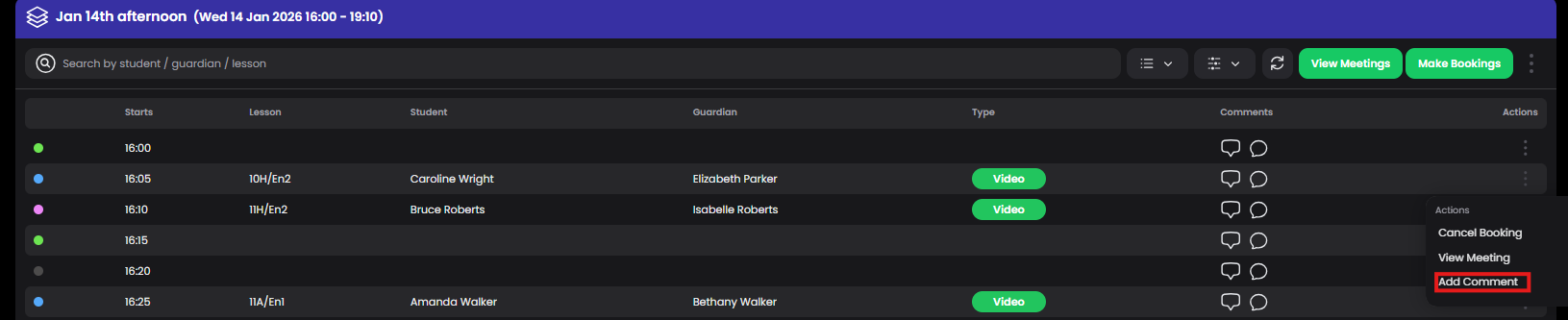
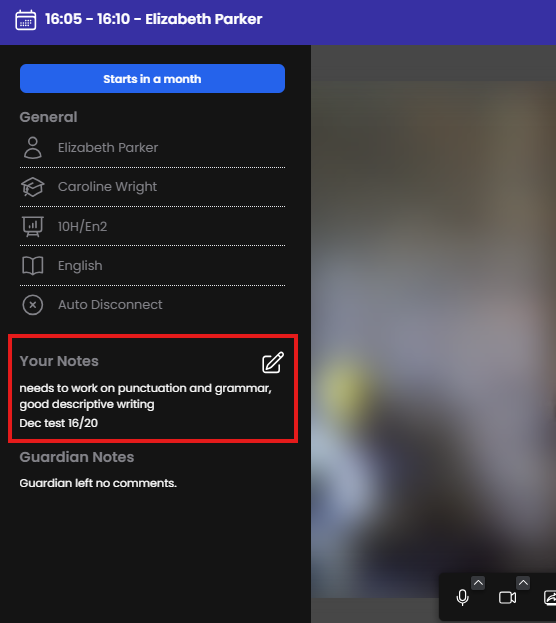
This can be especially useful for video call events, as your notes are available during calls.
View guardian/parent comments
If enabled by the event admin, parents can send meeting comments. To view all comments, go to Event Reports - Event Comments
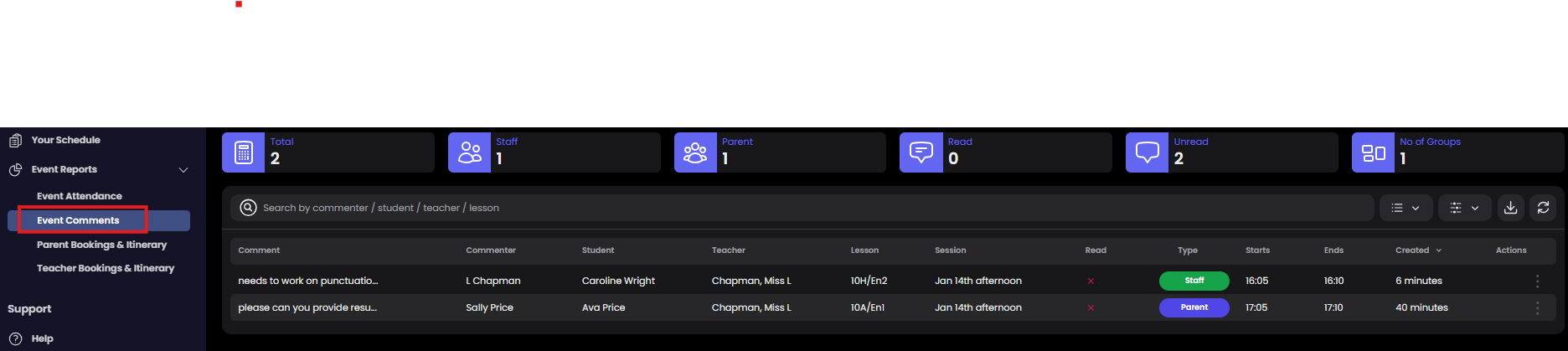
You can choose to view individually from Your Schedule by clicking on the comments icon where you see it
