Video Call meeting settings
Add virtual backgrounds
Teachers login and video controls include the option to add a custom background or use a blur. This can help with privacy (if working from home) and provide a consistent theme for your parent / teacher meetings. Backgrounds are only available to teachers (not parents)
When you have started a meeting, select the background icon
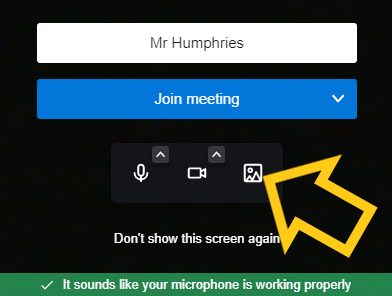
You can now choose from one of the default backgrounds or add your own. If you add your own background the image file needs to be a small jpeg at 2880 x 162 pixels.
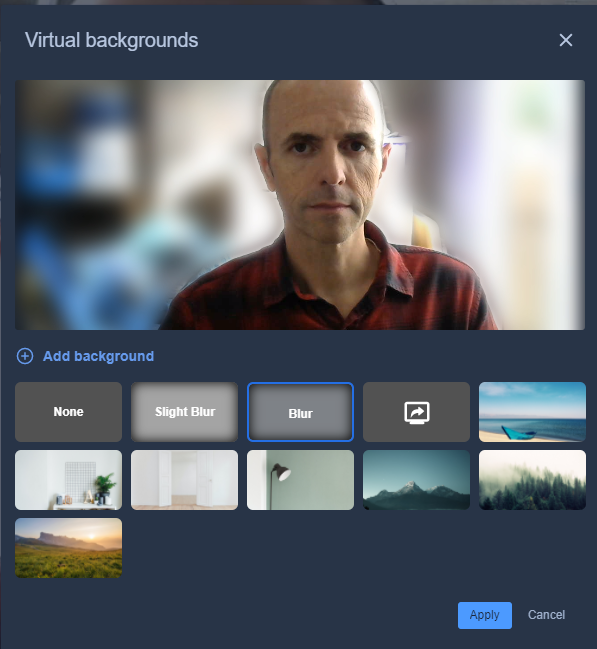
You will see yourself previewed with the new background image. Select Apply to update. Your background setting will be stored for your subsequent meetings (assuming you are using the same browser).
Coutdown timers and auto-disconnect for video calls
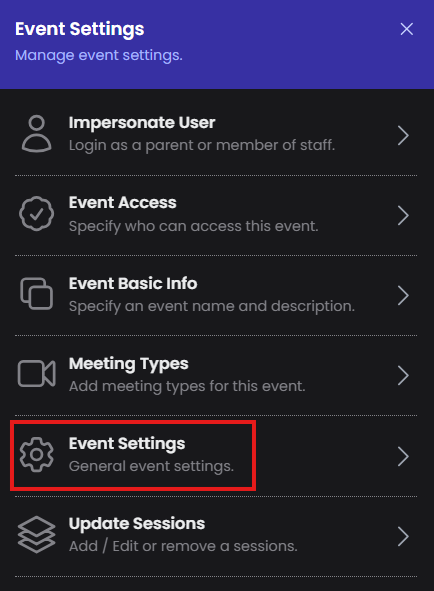
Timers are always available to teachers in the booking details panel. However, if you want to force the appointment schedule you can add 'auto-disconnect' to video calls. Go to the settings cog for your event (top right) and select Event Settings. You can then toggle VC Auto Disconnect setting and Save
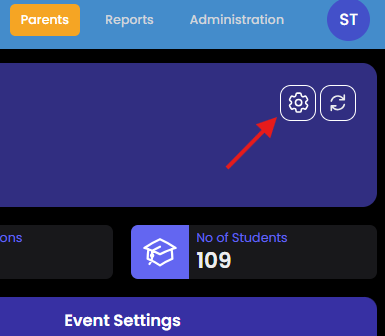
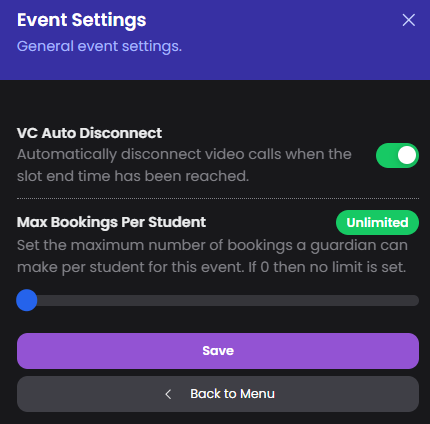
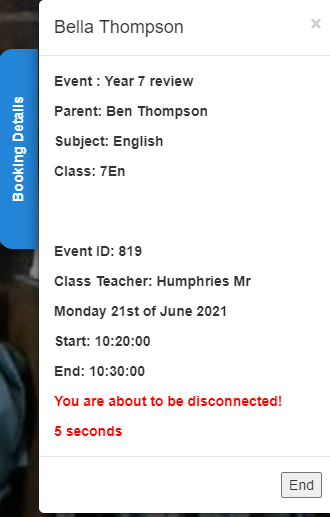
When this setting is enabled, your teachers will see a permanent on-screen message to remind them the video call event has auto disconnect enabled and will see a countdown timer in the booking details panel. Parents see the same countdown timer in their booking details panel. The countdown timer text will become orange in colour when less than 60 seconds are remaining, and red with 20 seconds, and a call disconnect warning.
Video Calling Technical FAQs
The SchoolBooking Video calling service is provided via a secure peer to peer connection and is hosted in ISO 27001 & EN 7510 certified data centres.
Teacher hardware
For the best experience we recommend a PC or Mac using Chrome or Edge browser. For successful video calls make sure the teachers hardware is of reasonable specification and has a working webcam & microphone.
Bandwith
The video calling service will adapt to the available bandwidth for both the teacher and parent. However, with a typical video call needing around 1-3Mbps in/out per call you will need to consider your schools network bandwidth when lots of simultaneous calls are being made.
Ports
No special ports are required. The video calling service uses standard https port 443. (If your school is has a Smoothwall, please see below)
Compatible Browsers
Windows: Chrome, Firefox, or Edge
Android: Chrome or Firefox
Mac: Safari, Chrome, or Firefox
iPhone/iPad: Safari
Camera and Microphone issues
Most camera and microphone issues are related to access. The camera and microphone can only be connected to one application, so if you are using something like MS Teams or Skype it will help if you close these applications before starting to make video calls with SchoolBooking. The web browser will ask for access when it first connects to a Video call. If this setting is incorrect the microphone and camera maybe blocked.
Please see these guides that should help you unblock your device
Chrome Use your camera & microphone - Computer - Google Chrome Help
Firefox How to manage your camera and microphone permissions with Firefox | Firefox Help (mozilla.org)
Safari Change Websites preferences in Safari on Mac - Apple Support
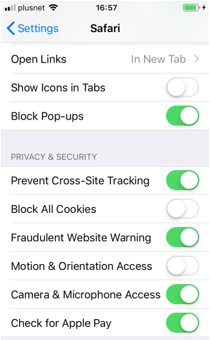
iPad/iPhone users- Go to Settings and search for the Safari application. Check Camera & Microphone Access is enabled
Smoothwall firewall rule (only if your school/trust has Smoothwall filtering)
If your school has a Smoothwall firewall, depending on its setup you may need to include a firewall rule to support video calls.
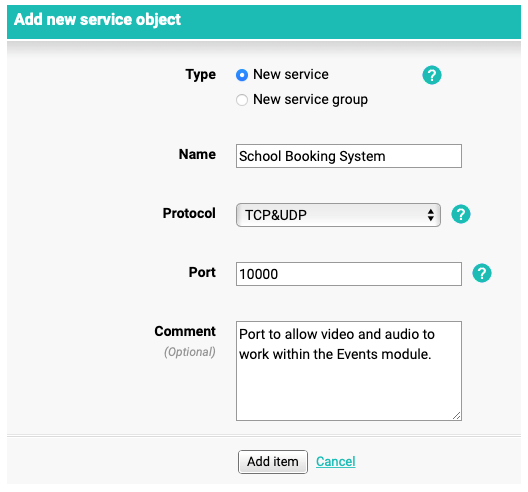
Within Smoothwall go to Network - Firewall - Firewall Rules. In Firewall Rules, number 2 is Allow Internal. Hover your mouse over that option and select Edit. Next to the Services option select Create and add details per below screenshot. Then select the newly created service from the list and select Add and then Save Changes.