Manage Parent Invitations
For Event Managers & Administrators
After you have created the your event and added lessons, you will need to send the Parents their invitation emails. Go to Manage Event - Invitations.
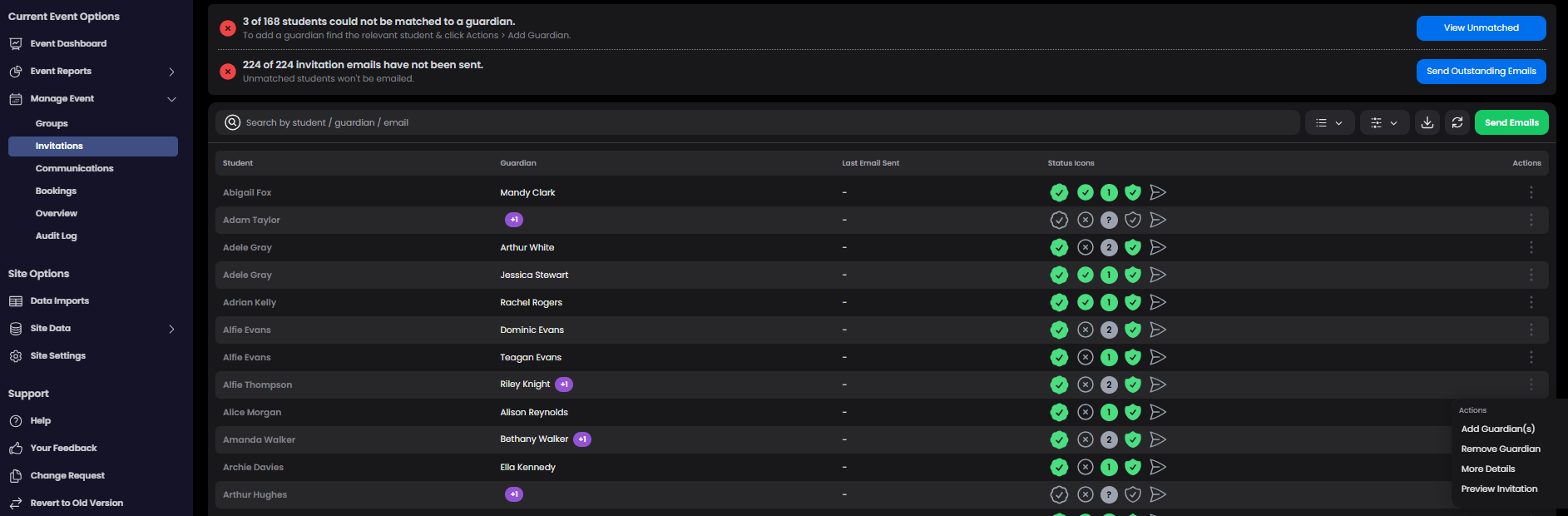
Add other other guardians
Any Guardian name with a +1 symbol next to it indicates that there are other guardians associated with the student that haven't been invited. Select 'Actions' to Add other guardians. An example of why you might want to do this is when the parents live apart and want separate meetings with the teachers.
 .
.
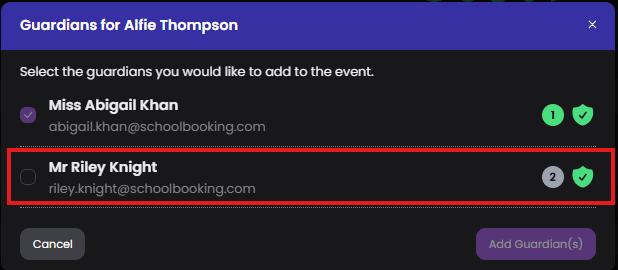
Note : During the Create Event wizard you can add all secondary contacts
Preview the invitation
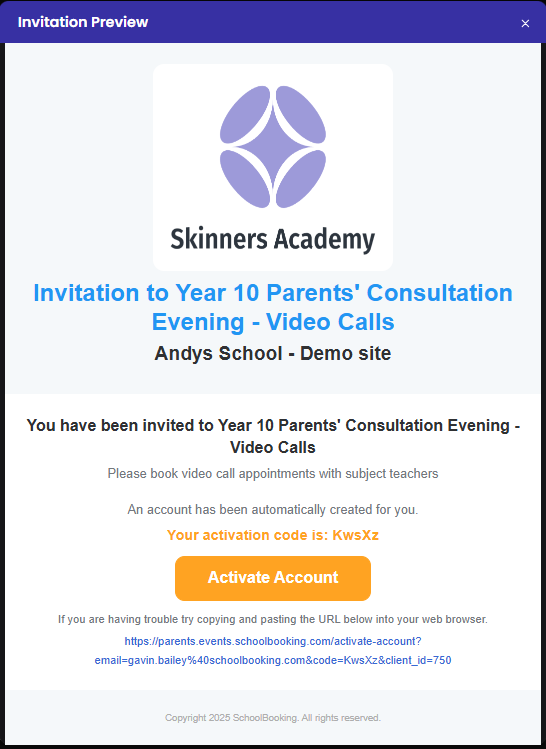
Select Actions on any Invitation to preview. The email invitation includes your event title and description and a link to either View Event or Activate Account. Guardians that have never used SchoolBooking before will use the Activate Account link which will login them in (at https://parents.events.schoolbooking.com) and ask the guardian to generate a password. The guardians will need to use the same email address (that the invitation was sent to) and password for future logins and meetings. The parent login page can be customised (See this guide)
Unmatched Students
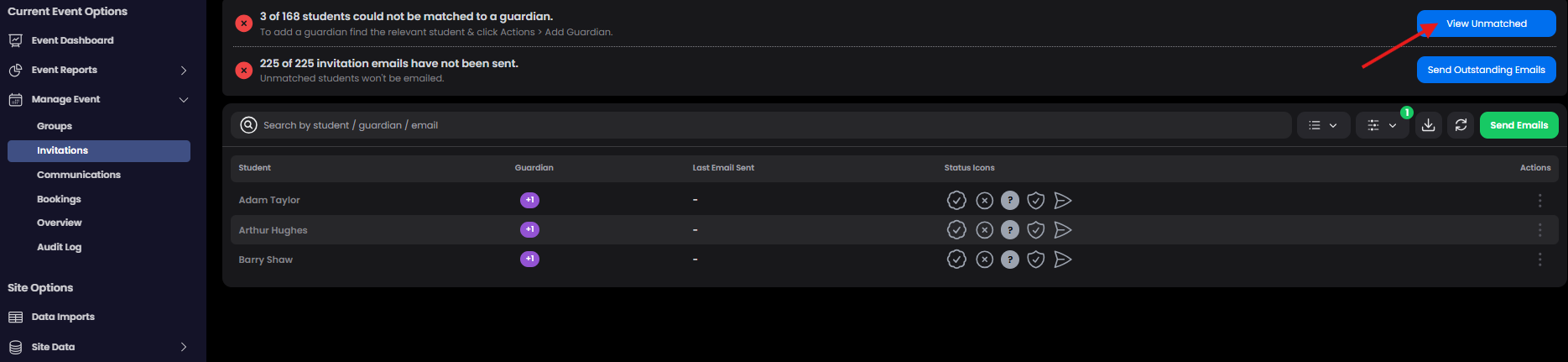
You need to check that every Student is matched to at least one guardian. You can still send the invitation emails, but unmatched students will be missed. To quickly filter the Invitations view, select View Unmatched . From here add the other guardians as above.
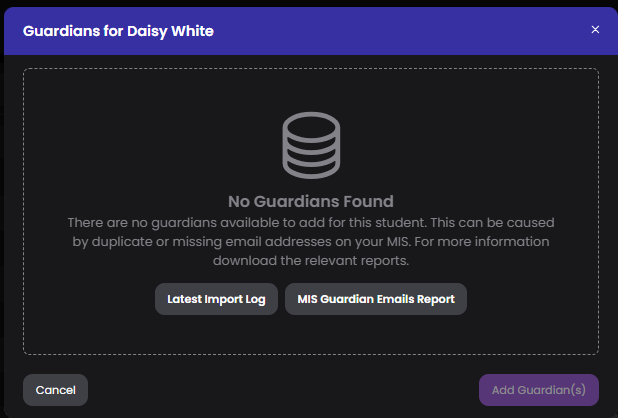
If when trying to add guardians you see the No guardians Found message, you need to download the reports and follow this guide to resolve.
Send Emails
Make sure your event is open to parents (see How to open your event to staff and parents, and disable bookings ) before sending emails. Select Send Outstanding Emails to start the 3 step process.
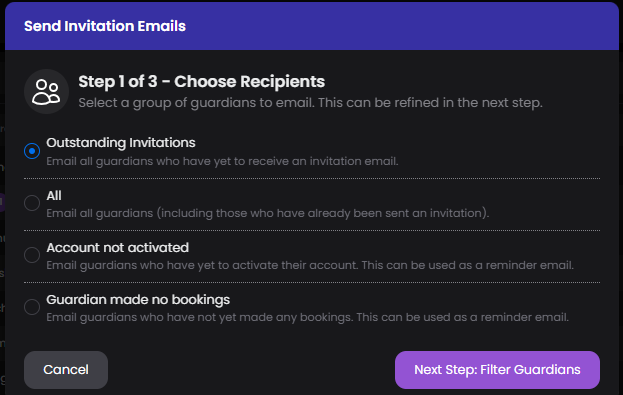
Step 1 - Choose Guardians
Typically you will normally choose 'Outsanding Invitations' initially so all your guardians will receive an email invite. However, you can come back to the send emails process to resend emails (for example : to those guardians have not yet made any bookings).
Step 2 - Filter Guardians
If needed you can filter specific guardians that you don't want to receive the invitation emails (for example : you may only want to send to a small group of guardians first before sending to everyone else)
**Step 3 - Confirm & Send
A chance to review which email invitations are going to be sent. Select Send and you will see you emails are queued for sending, this will only take 1-2 minutes to complete.
Email Delivery stats
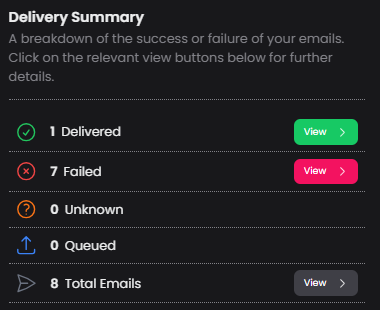
After your invitation emails are sent, you may have a few that have not been successfully delivered to the parents mailbox (indicated by warning icon). To review the email delivery stats go to Communications and select Actions - View Delivery Stats


You will see a breakdown of success or failure of your emails
Email Invitation troubleshooting
If guardians indicate to you that they have not received the email or are having difficulties with login, you can provide some assistance. Ask the guardian to first to check junk/spam folders, if they still can find the email invitation (the sender is noreply@schoolbooking,com) go to Manage Event - Invitations view and search for the guardian/student name then select Actions - More Details

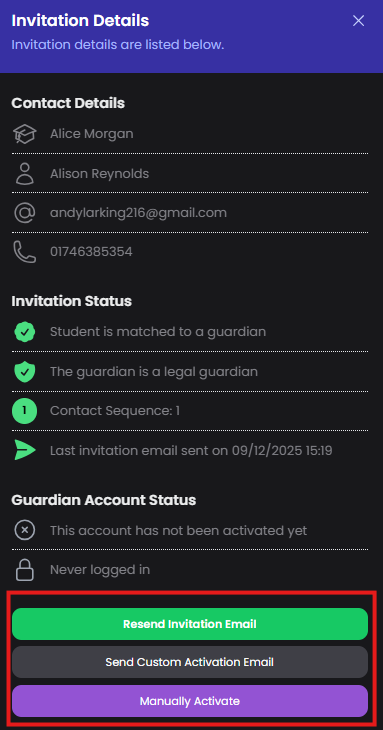
From here you can resend the invitation email, send custom activation email (this will open in your default mail app with invitation details ready to send to the guardian - but this will be from your school email domain), and manually activate the parent account (if available it hasn't been activated already).
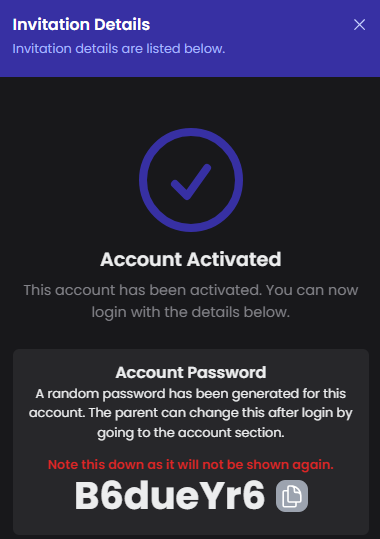
Manually Activate will show a single use password that you can send to the guardian to use (they will then be asked to create a new password)
If guardians/parents need to reset there password they can do this from their login page https://parents.events.schoolbooking.com/ .
If a guardian/parent is unable to reset the password you can do this for them. See this guide