Your MIS data - clean up duplicates
Our parent meetings service creates user account for each parent/guardian record from your MIS. The parent/guardian email address is the unique identifier and can only exist for one parent/guardian in your MIS. If you have parent records where the email is duplicated they are ignored in the sync import.
It is essential that these duplicates are removed from your MIS to ensure every student included in your parent meeting events has an associated parent.
There are a few steps to clean up your duplicates
1. Download the MIS Guardians report
2. Review the duplicate entries and update your MIS parent records
3. Request to Sync New Xporter Data
Step 1 - Download the MIS Guardians Report
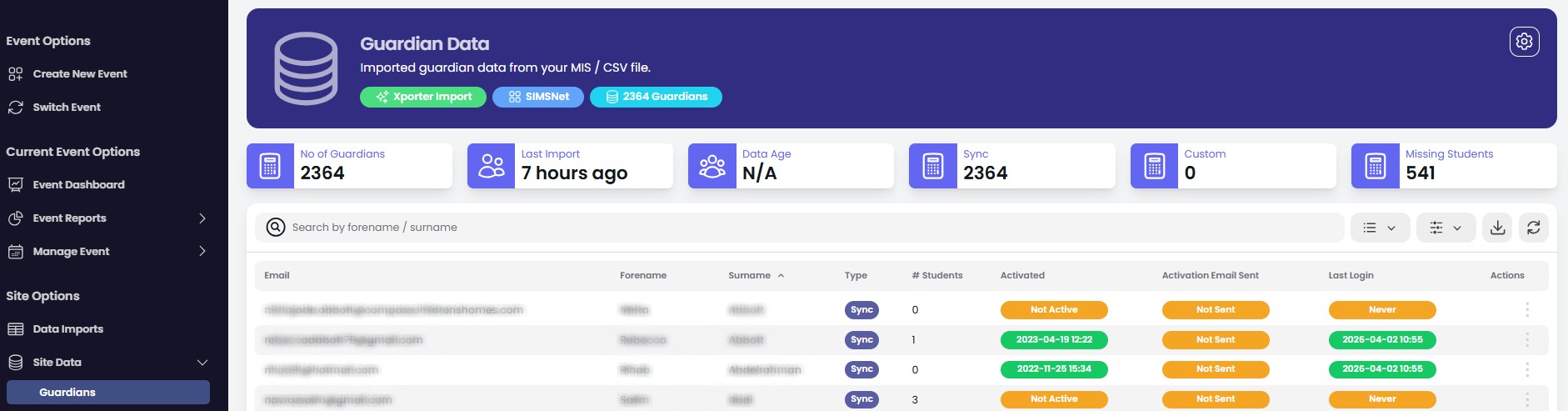
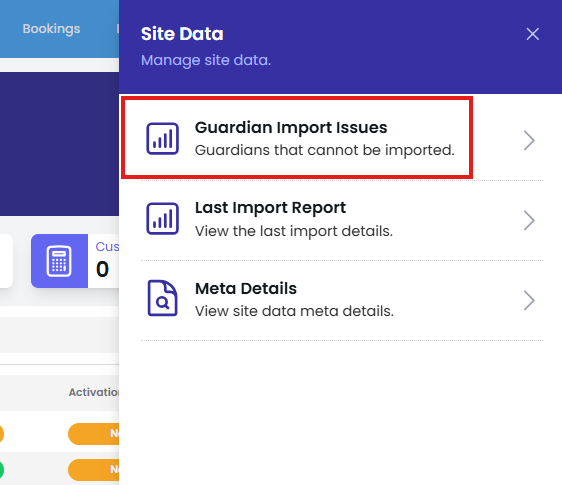
From the Parents Meeting Dashboard, go tot Site Data - Guardians and choose the site options cog and select Guardian Import Issues
Step 2 - Review the duplicate entries and update your MIS parent records
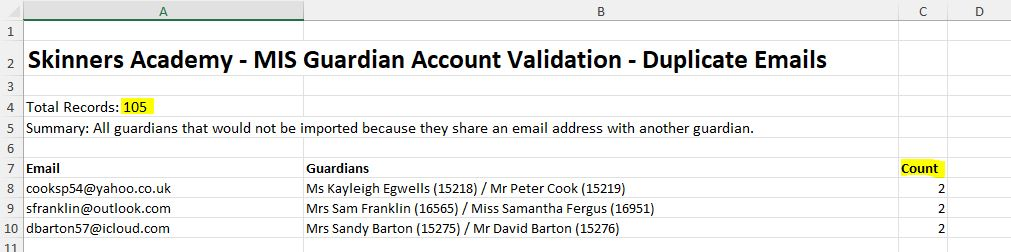
Find the MIS Guardians Report (probably the last file in your downloads folder) and open in MS Excel. You will see the total records affected by duplicates.
There are normally 2 types of duplicates to resolve...
1. Parent records for both mother and father linked/associated with the student have the same email address. In this scenario choose to either update the email address for one of the parent/guardians or remove the email address from one of them
2. Additional parent records are created for siblings and both records share the same email address. In this scenario, one of the parent records needs to be unlinked and removed. The single parent record is then relinked/associated with all students
You will notice the MIS Guardians report will include the name and MIS ID for both the parent(s) and student(s). You can use this to help find and resolve duplicates.
Specific MIS Guidance
Bromcom - How to find and remove duplicate Contact Records from Others
Arbor - How to delete or merge duplicate guardian or parent profiles
SIMS - See this guide
iSAMS - Manage your contacts & family links
Step 3 - Request to Sync New Xporter Data
After you have made changes to the parent records in your MIS you will need to request a new data sync with Xporter. To do this go to Site Options - Site Data and select Synchronise (see Learn more
You will now need to wait 60-90 minutes for the new data.
If you are waiting longer than 90 minutes for an update to your data please contact our customer services team with a support ticket and they can check the sync status.